
This firmware is for JMGO O1 Pro Projector with MediaTek MT9669 as CPU.
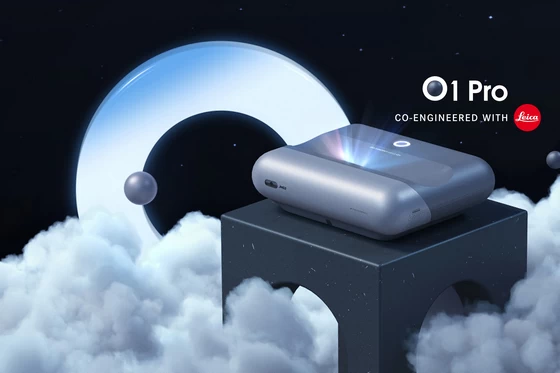
Download Luna OS v1.0.52 based on Android 9 stock firmware for JMGO O1 Pro Projector from here.
Firmware details
Archive: JMGO O1 Pro_Firmware_1.0.44v
Model: JMGO O1 Pro Projector
Image file size: 1,6 GB
Platform: MediaTek MT9669
Update file name: JMGO O1 Pro_Firmware_1.0.44v.zip
Build number: MediaTek/m7642_JmGO_T72A/m7642_JmGO_T72A:9/PPR2.180905.006.A1/1.0.44:userdebug/dev-keys
Caution: Please do not update firmware unless you know what you are doing, you really want it or it is absolutely necessary. Firmware updates may occasionally have bad results, like bricking your device, temporarily or permanently. The firmware update process is done entirely at your own risk. Before attempting to update the firmware, back up your data.
Did this article help you? If so, please tell me in a comment what do you think about it.
Don’t miss any of our future video tutorials, follow us on Youtube. Like us on Facebook. Watch our photo albums on Flickr. Subscribe now to our newsletter. Biggest firmware download center.


Estou precisando da firmware do projetor x8 rockchip 3128
Good afternoon,
My Jmgo 01 projector was in the process of updating when I lost my internet connection.
Now, when I start it, I get a system error. with information.”the system self-check is abnormal (4004), and it will automatically shut down after 7 seconds. if it occurs frequently please contact customer service tel: 400-6620138″
How can I recover my UST projector?
Please help me.
Best regards,
custodio Dos santos
🔧 Step 1: Hard Reset / Power Cycle
Disconnect the projector completely from power.
Wait at least 1–2 minutes.
Plug it back in and try again — sometimes it can restart the update automatically.
If it still shows the same error, proceed to the next step.
🔧 Step 2: USB Firmware Recovery (Most Likely Needed)
JMGO projectors usually have a way to force reinstall firmware from a USB stick:
Download the correct firmware for the JMGO 01 (you’ll need to contact JMGO support or check their official site/support forums, as they don’t always list firmware publicly).
Format a USB stick to FAT32.
Copy the firmware update file (often named something like update.zip or JMGO01_Vxx.img) to the root of the USB drive.
Insert the USB stick into the projector’s USB port.
Enter recovery mode: On many JMGO projectors, hold the power button (sometimes with volume up) while plugging in the power until the recovery menu appears.
If a menu shows up, select “Update from USB” or similar.
Wait for the update to complete, and don’t remove power or USB until it finishes.
🔧 Step 3: If USB Recovery Doesn’t Work
Contact JMGO customer service (the number on your error screen, or email support@jmgo.com
They may send you the exact firmware file for your model or walk you through the forced recovery process.
In some cases, the projector may need a service center reflashing if the bootloader is corrupted.
✅ Most important next step: You’ll need the official JMGO 01 firmware file before you can attempt USB recovery. Without it, the projector can’t reinstall the system.
Please can supply firmware fo Jmgo 01 so that I can try to update my projecter?
Ask for it from JMGO