Shanling EM7 New Firmware Update v1.45 is now available to download from Google Drive.
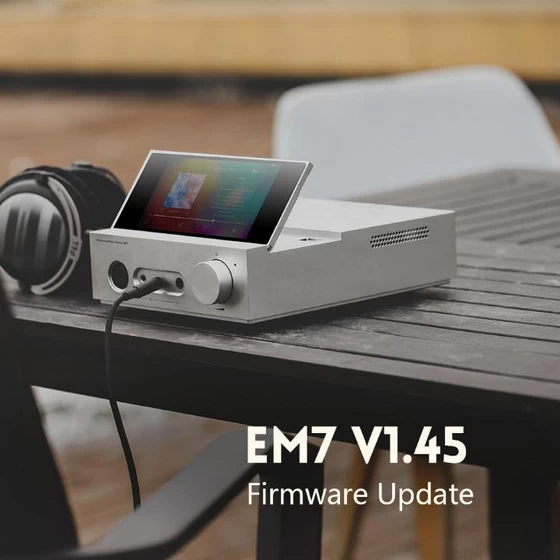
EM7 Firmware v1.45 Changelog
1. Adjusted display of SRC.
2. Added volume memory for pre-out setting.
3. Improved Album art and Lyrics online download.
4. Optimized performance of SyncLink.
5. Improved Wireless Projection performance.
6. Other fixes and improvements.
Main menu changes
Streaming services and Input Switching menus were moved to a different place in the system. Please read this guide to learn how to access them in the new Firmware.
Accessing Input Switching menu
Easiest way to access the Input Switching menu is by dedicated icon in the Swipe down menu. Swipe down from top of the screen to view this menu. Available in all parts of the system.
New “Source” Floating button
This second floating button was added to the system, allowing for quick access to Input Switching Menu from anywhere in the system. To open Input Switching Menu, hold on the “Source” button for 2 seconds.
You can hold and drag this button, to move it around the screen.
“Source” button can be disabled in System settings – Display – Open Audio-Source Floating Ball.
New Location of Streaming services
Streaming services were moved to the Input Switching menu. To access this menu, use the “Source” floating button or “Input-Switching” icon in Swipe down menu.
When opening the Streaming services menu, there is slight 5 second delay.
New Floating buttons in Wireless Projection on Eddict player
There are two new floating buttons in Wireless projection – Exit Button and Volume Control button.
If all floating buttons are enabled, you will see 4 floating buttons in Wireless Projection.
All of these buttons can be moved around the screen, making sure they do not cover any UI elements underneath them.
Over-the-Air firmware update
1. Make sure your Player is connected to Wi-FI network with access to internet.
2. Go to “Settings” – “Firmware Update”.
3. Click on “Online Update” and wait for system to detect new firmware.
4. Wait until firmware is downloaded and fully installed.
5. If you are updating from firmware V1.28 or lower:
After the firmware update, it’s needed to reset the default music app.
Go to System settings – Storage – Internal shared storage – Apps – Shanling Music – Clear Data
Alternatively, you can do a full factory reset after the firmware update:
Go to System Setting -> Factory data reset -> Erase Everything
Manual Update (recommended for faster update)
1. Copy downloaded .zip file into root/main folder of internal memory or into MicroSD card. (without unpacking/opening .zip file)
2. Go to “Settings” – “Firmware Update” and click on “Local Update”.
3. In browser, locate the update .zip file.
4. Confirm install and wait until Player updates and restarts itself.
5. If you are updating from firmware V1.28 or lower:
After the firmware update, it’s needed to reset the default music app.
Go to System settings – Storage – Internal shared storage – Apps – Shanling Music – Clear Data
Alternatively, you can do a full factory reset after the firmware update:
Go to System Setting -> Factory data reset -> Erase Everything
Did this article help you? If so, please tell me in a comment what do you think about it.
Don’t miss any of our future video tutorials, follow us on Youtube. Like us on Facebook. Join our Best Deals Telegram Channel. Join our Android TV Box Firmware Updates Telegram Channel. Subscribe now to our newsletter.