This is for Eken V8s camera only! Do not use for any other camera. Please note there are 3 versions of V8s, EKTH, EKHK and WEB.

Firmware update from micro SD Card
Please choose the same one as your current version. Video tutorial here.
Please upgrade with caution if you are unfamiliar with the procedure. There is a risk of bricking the camera if the firmware version is incorrect, or not executed properly, please proceed with caution. Instructions are below. Please note V8s update is slightly different than other EKEN cameras. Please read the instructions carefully before updating. REMEMBER to remove the micro SD card after successful update, and before resetting.
1. Format the micro SD card. Unzip the files and open card update folder, copy AmbaSysFW.bin on to the micro SD card.
2. Please update it when the battery is at 80% or more, or connect it to the charger before updating.
3. Turn off the camera, plug the micro SD card into the camera.
4. Press the on/off (mode) button, the camera will prompt “Firmware Update?” Please select “YES”. Screen will turn off for a few minutes, please do not touch any buttons.
5. Once update completes, it will turn back on automatically, and display “Update notification Option?” Please simply take out the SD card and turn off the camera.
6. **REMOVE THE MICRO SD CARD** before proceeding to next step.
7. **MAKE SURE MICRO SD CARD IS REMOVED FROM CAMERA** then go to settings and select RESET.
8. Turn off the camera and turn on the camera to make sure update has been successful.
9. Remember to reformat the micro SD card before using it again. Reformat it on the computer before using. There’s a risk that the camera may brick if the update process is not executed properly, please use with caution or contact us for more support. This is for V8s camera only!
Download your firmware correct version from here
V8s_eken_20170518-WEB
V8s_20170531(STD_EKTH)
V8s_20170531(STD_EKHK)
V8s-v2.0_20170623-STD_EKHK
V8s-v2.0_20170623-STD_EKTH
V8s-v3.0_20170628-STD_EKHK
V8s-v3.0_20170628-STD_EKTH
V8s_v2.0_WEB_EKTH-20170713
Firmware restoration procedure
Download drivers and firmware from here.
1) Install the latest version of AmbaUSB-win32-Qt5-Win7-3.4.8-Setup.exe
2) For x64 systems, install the drivers from Ambarella-driver-64bit.zip. You must disable Driver Signature. Run cmd as administrator and enter bcdedit.exe /set nointegritychecks on. Restart the computer.
3) Disconnect the battery and memory card from the camera. Hold down the “record” button and connect to the computer. While holding down the record, press the power button. A new device Ambarella Evaluation Board Devices will be found in the device manager. If it is identified as an unknown device, then specify the drivers manually.
4) Run AmbaUSB and select S2L (a12). The camera will appear in the list.
5) Set in BoardConfig – A12_tarokoB_hynix.ads
6) Specify Firmware – bst_bld_pba_sys_dsp_rom_lnx_rfs.elf
7) Press the big blue arrow and wait for the process to complete.
If errors appear when you press the firmware button, then reboot the computer and try again. Video on recovery using the example of EKEN H8
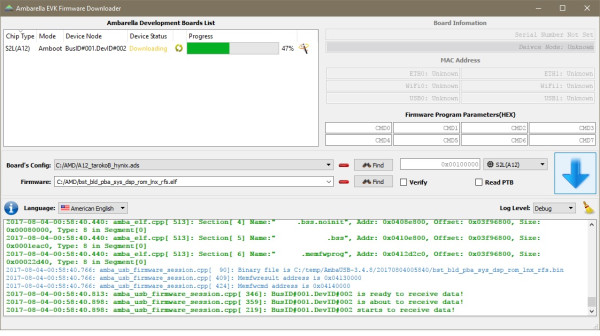
Follow these steps, in order, one-by-one. Do not skip any steps.
1. remove USB cable from camera, remove battery, remove SD card from camera.
1a. insert SD card in computer, delete ALL files from SD card.
2. reboot Windows, DISABLE DRIVER SIGNATURE ENFORCEMENT. YOU MUST DO THIS ALWAYS, also disable anti-virus software if you encounter problems.
3. download CORRECT firmware .ELF file with CORRECT version for your camera. Do NOT use the latest/newest firmware. it may not work. Firmware .BIN file may NOT work.
4. install software “AmbaUSB-win64-Qt5-Win7-3.6.4-Setup.exe” from here or here – do NOT open/run it. only install it for now.
5. answer YES when you see “install this driver software anyway”
6. start AmbaUSB software in administrator mode, right click and “Run as Administrator”.
6a. Change Log Level to “Debug”. Change Board’s Config to “A12.LPDDR3.EMMC”. Click on ✓ “Verify”. Do NOT click Find button next to Board’s Config. Change chipset name to correct chipset that you have, next to the blue arrow. Many Eken cameras use Ambarella A12. This is called “S2L(A12)”. Do NOT click “Read PTB”. It is not needed. Click Find button next to “Firmware”. Open the CORRECT .ELF file with CORRECT version. For example, “bst_bld_pba_sys_dsp_rom_lnx_rfs.elf” file is for H5s Plus STD_EKIK_20180426. Your .ELF file may be different.
7. remove battery if not already. press and HOLD shutter/OK button on camera first, then connect USB cable to camera and to computer USB 2.0 port – USB 3.0 port may cause problems
8. if all steps 1 to 7 are done correctly and completely, then click big blue down arrow in AmbaUSB software.
9. You must see “amba_usb_firmware_session.cpp” messages in the log box. Log Level is Debug. If you don’t see that, then the flash download may fail.
10. You must see “amba_usb_device_manager.cpp: Firmware session 0x0123456 has finished transfering!” messages in the log box. Log Level is Debug. If you don’t see that, then the flash download may fail.
11. remove USB cable from camera. Close AmbaUSB software.
12. insert battery, insert SD card, power on camera. Open Settings menu, go to Reset, choose Yes. Power on camera again.
Did this article help you? If so, please tell me in a comment what do you think about it.
Don’t miss any of our future video tutorials, follow us on Youtube. Like us on Facebook. Join our Best Deals Telegram Channel. Join our Android TV Box Firmware Updates Telegram Channel. Subscribe now to our newsletter. If you need Tech Reviewer or Youtube Influencer read this. Donate now here to support CGR Team!