Cayin released the latest firmware for its Android-based digital audio player, the Cayin N6II. The latest firmware adds support for the upcoming new Audio Motherboard for the player and a few optimizations.
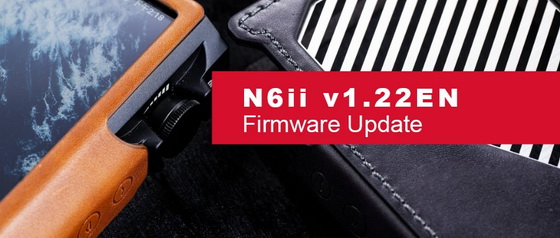
Changes and Features in Firmware v1.22EN
– Added data and user-interface to support the forthcoming Audio Motherboard.
– Fixed “PO/LO” icon error on the Notification Bar for BAL on A01 and T01 audio motherboards.
– Other bugs fixed and system optimization.
Users can update their Cayin N6ii player with two different methods, Local upgrade method, and OTA(Over the Air) Wi-fi method.
Please Note
Please make sure your device has more than 30% of battery and at least 1GB of free space before you start the upgrade. Do not operate the device during the firmware update procedure. During a firmware update, the device will turn off and reboot automatically. If the device does not reboot 3 minutes after it turns off, please press and hold the POWER BUTTON for 3 seconds to boot up the device, it will automatically resume the firmware update process. Please delete/remove the firmware file from the TF card after a firmware update.
Local Upgrade Method
– Download the file from official Cayin website or Google Drive. (Cayin_N6MK2Int_1.22EN_8.1_user_update.zip)
– Copy the downloaded file to the root directory of either the internal memory of your player or to your external SD card.
– Enter the “Settings” menu.
– Click on “Wireless update”.
– Press the Three dot icon on the top right corner.
– Click on “Local Update” from the drop-down menu.
– Navigate to the Firmware file you just copied on your device and click on it.
– Press “Install Now”.
– Click on “ok” at the dialogue box.
– The installation will begin and the device will restart.
OTA Method
– Start the Wi-fi on your Cayin N6ii and connect to the internet.
– Enter the “Settings” menu and click on “Wireless Update”.
– Click on “Check for Updates”.
– Click on “Download” after the device detects the new firmware.
– Press on “Install Now” after the download is completed.
– Click on “ok” at the dialogue box.
– Installation will begin and the device will restart.
This will help you update your device to the latest firmware.
Did this article help you? If so, please tell me in a comment what do you think about it.
Don’t miss any of our future video tutorials, follow us on Youtube. Like us on Facebook. Add us in your circles on Google+. Watch our photo albums on Flickr. Subscribe now to our newsletter.