Shanling CD Players New Firmware Updates.
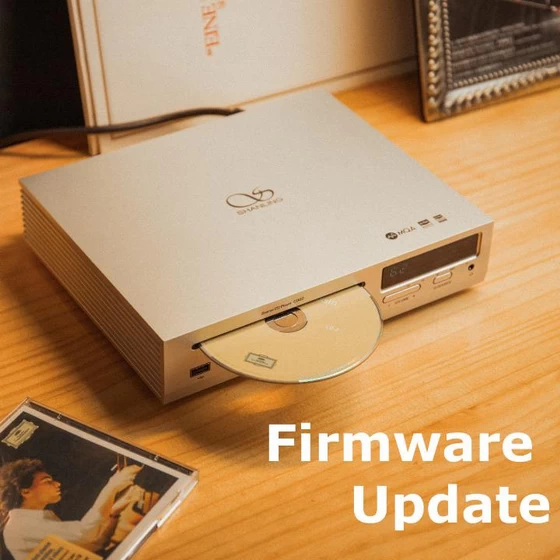
Download Shanling ECMini Firmware V2.2 from Google Drive.
Download Shanling ET3 Firmware V1.6 from Google Drive.
Download Shanling CD80 Firmware V1.7 from Google Drive.
Download Shanling CA80 Firmware V1.7 from Google Drive.
Changes and fixes on ECMini
1. Fixed charging issue during prolonged CD play
2. Other optimizations.
Changes and fixes on ET3
1. Fixed issue with SRC switching channels.
2. Other optimizations.
Changes and fixes on CD80 & CA80
1. Optimized certain display functions
2. Adjusted remote control behaviour for it to act in all modes.
3. Added the total play time to the CD disc display
4. Default RCA volume output is set to 30
5. Improved USB mode file reading
6. Other optimizations.
How to update ECMini – Firmware Update Demands a MicroSD card
1. Download the firmware package, unzip it, and copy the upgrade file “update.bin” to the MicroSD card. Copy the file into the main/root directory, do not copy it into any folders.
2. Insert the MicroSD card into the EC Mini. Go to ”System” – “System Update” and confirm the update. Wait for the system to update and restart automatically.
3. You can go to “System” – “About” to confirm firmware was installed correctly.
How to update ET3:
1. Copy the “update.bin” file into root folder / main folder / highest level of USB drive and insert it into ET3.
2. Go to System settings – System Update and click on “Local Update” and confirm. Wait until system restarts and completes the instalation. Check in settings “About” to be sure new firmware is installed.
3. If the update doesn’t start after choosing “System Update”, please check if the file has been correctly unzipped, if the file is placed in the correct level of the drive, or if the file hasn’t been damaged during the transfer.
Shanling ET3 can be updated to latest firmware version using Wi-Fi connection.
1. Connect ET3 to Wi-Fi network connected to internet. Please consult the Advanced User Manual for this.
2. Insert USB drive into ET3. There must be some empty space on the drive.
3. Go to System settings – System Update, click on “Network update”, confirm update and update will start to download and install. Wait until download and installation is completed and system restarts. Check in settings “About” to be sure new firmware is installed.
Note: If latest version of firmware is already installed, ET3 will show notification and will stop update.
How to update CD80 & CA80 – Firmware Update Demands a USB Memory Drive
1. Download the firmware package, unzip it, and copy the upgrade file “update.bin” to a USB Memory drive. Copy the file into the main/root directory, do not copy it into any folders.
2. Insert the drive into the CD80 or CA80.
3. Switch mode to USB Mode, using the “Source” button.
4. Press and hold the Play/Pause button, keep holding until the screens hows “UP—“.
5. Release the button and wait for the system to restart. It will show “UP” on the screen, wait for it to finish updating process, it will restart at the end.
6. Update is now finished.
Did this article help you? If so, please tell me in a comment what do you think about it.
Don’t miss any of our future video tutorials, follow us on Youtube. Like us on Facebook. Join our Best Deals Telegram Channel. Join our Android TV Box Firmware Updates Telegram Channel. Subscribe now to our newsletter. If you need Tech Reviewer or Youtube Influencer read this. Donate now here to support CGR Team!