
This firmware is for Tanix TX5 Pro TV Box with AMLogic S905X as CPU.
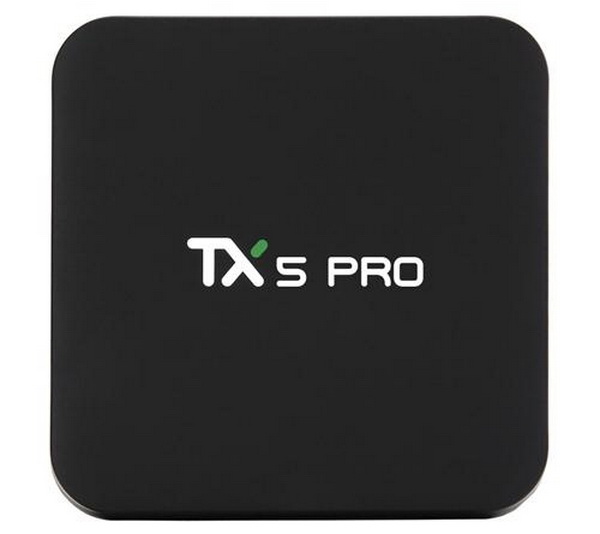
Download Android Marshmallow 6.0.1 stock firmware for Tanix TX5 Pro TV Box from here. Download previous firmware from here. Download Amlogic USB Burning Tool v2.1.6 from here or download Amlogic Burn_Card_Maker v2.0.2 from here.
Firmware details
Archive name: TX5pro-9377-20161121_Fn-Link 8223A_Divox
Image: TX5pro-9377-20161121_Fn-Link 8223A_Divox.img
Archive file size: 572 MB
Platform: AMLogic S905X
Build number: p212-userdebug 6.0.1 MHC19J 20161121 test-keys
To install:
1. Save correct ROM file on PC.
2. Download and install USB Burninig Tool
3. Connect a USB cable (male-male) to the PC, and before connecting the other end to the TV Box (no need to turn on the power) press the reset hole located under the equipment. The USB connection will power the equipment, which will display the logo on the TV or monitor connected to the HDMI.
4. The USB connection is the middle one (does not respond to any USB of the equipment), when connected successfully, the PC will emit a sound alert similar to the connection of a pen-drive and the port used and the port used will be displayed in the USB Burning Tool. the success message. If not, change the cable to another USB port.
5. Once connected, in the USB Burning Tool, load the ROM file (*.IMG), and press the START button. Recording status that occurs in less than 3 minutes will be displayed.
6. When finished, click on STOP before disconnecting the equipment. Then just close the software, remove the equipment and start it normally connected to the power source and the TV.
Tip: The recording process is not called Burn for nothing, the chipset heats up when recording is received. The recording program comes with default “temperature” setting to operate between 20~40 degrees. But in this equipment, we need to go up to 20~80 to resolve write error, when incomplete Status at 97% is displayed in red flag. When raising the maximum allowable temperature setting, you will have a Green Status with 100% success in most cases.
Caution Please do not update firmware unless you know what you are doing, you really want it or it is absolutely necessary. Firmware updates may occasionally have bad results, like bricking your device, temporarily or permanently. The firmware update process is done entirely at your own risk. Before attempting to update the firmware, back up your data.
Did this article help you? If so, please tell me in a comment what do you think about it.
Don’t miss any of our future video tutorials, follow us on Youtube. Like us on Facebook. Join our Best Deals Telegram Channel. Join our Android TV Box Firmware Updates Telegram Channel. Subscribe now to our newsletter. If you need Tech Reviewer or Youtube Influencer read this. Donate now here to support CGR Team!


