How to create a wireless network in your home. Using an Ethernet Cable, a modem, a router, and a wireless computer, creating a wireless network is simple.
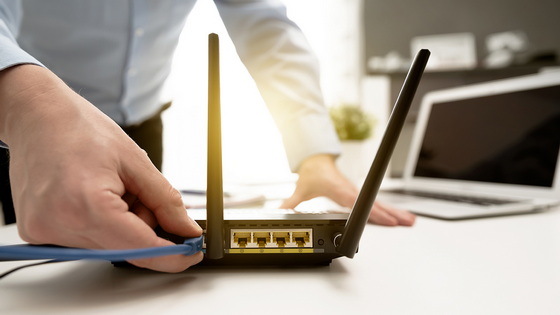
Setting up a wireless router can seem like a complicated task, though it is usually very simple to do. Most wireless routers come packaged with the following; the router, an Ethernet cable, a USB cable, and an installation disk. Aside from a wireless network adapter, which comes built into most new computers, this is all you need to turn a standard Ethernet-based network into a Wi-Fi hot-spot. Many people wonder if they need to inform their ISP, or Internet Service Provider, that they are installing a wireless router, or if there is an additional charge for doing so. The answer in both cases is: Almost never. As long as the Internet subscription is broadband (cable or DSL) and unlimited in terms of data transfer quantity, there is no need to inform the ISP and it will not incur any extra charges.
Choosing the best place to put a wireless router
Location is the first thing to consider when installing a wireless router. Picking a good central location is vital to ensuring strong signal reception by all devices on the network. System administrator Peter Winslow of the business essay writing service thinks that good locations for wireless routers are usually on the middle floor of a home, or nearest to the wireless computers as possible. The closer the router is to the computer, the stronger the connection will be.
Also, avoid placing the router within five feet of any objects that may cause signal interference such as refrigerators, cordless phones or microwaves. Keep in mind that the wireless router will need to be physically connected to the modem via an Ethernet cable. Most routers come with a short Ethernet cable, around six feet in length, but longer cables can be purchased relatively cheaply.
For the initial installation, the wireless router will need to be connected to a computer. This can be done using one of the Ethernet ports on the back of the router. Virtually all modern computers have an Ethernet port that can be used for this purpose. Insert the installation disk that came with the router into the computer’s optical drive and open the router installation program.
Installing the software for a new wireless router
Click through the menu of the installation software to make the desired settings changes. This phase will ask for a password and network name, and should only take a few minutes. Most wireless routers come with user-friendly installation software, including a help section for any questionable areas.
If by some chance the router did not come with an installation disk, or the computer does not have a functioning optical drive, you can use the instruction provided by the experts from the top essay writing service. Type the IP address of the router into the URL bar of the computer’s Internet browser. For most new routers the IP is set to 192.168.1.1. This will bring up a login prompt where you can type the factory-set password and username.
Most routers use the username “admin” and the password of either “admin” or “password.” After logging into the router’s GUI, or Graphical User Interface, with the above method the settings can be modified. Changing the factory password can help to secure a wireless network. Look for options to change the broadcast ID and the security type. The broadcast ID is simply the name of the wireless network, which can be changed to anything. The security type can be set to WPA2 for a standard secure network that allows for custom passwords using up to 64 characters.
Connecting to the wireless router
After selecting a location for the wireless router and setting it up the create a wireless network, connect it to the modem to allow for incoming traffic from the Internet. The Ethernet port will allow for a faster connection than the USB port and should be used if there is no special reason preventing it. Do not connect both the Ethernet and USB cables to the modem at the same time, as this can damage the modem’s internal circuitry.
The last step in connecting to a wireless router is using a wireless network adapter to connect a computer to the network. After interviewing academic writers who help with essay writing, it turned out that most laptops and computers already have built-in adapters. If one is not built-in, it can generally be purchased online. Using the Windows wireless networking wizard, select the “browse for networks” option after powering the router on. Click the broadcast ID of the network and enter the password when prompted.
Open an Internet browser to test the connection. If everything is set up correctly, the browser should be able to display information from the Internet. If any errors occur, check the cable running from the modem to the router, and the wireless connection indicator light on the computer.
If using a new or external wireless card, installation of drivers and connection software may be necessary. Remember to create a password that is not easily guessable and consider writing the password on an unlabeled paper in your home or office. Router password security is an important part of keeping the devices on a wireless network protected.
Did this article help you? If so, please tell me in a comment what do you think about it.
Don’t miss any of our future video tutorials, follow us on Youtube. Like us on Facebook. Join our Best Deals Telegram Channel. Join our Android TV Box Firmware Updates Telegram Channel. Subscribe now to our newsletter.