The QuickBooks abort error typically occurs in multi-user environments when opening a company file. It’s often triggered by network setup issues, system inactivity, or conflicts due to simultaneous company file access. When this error occurs, you may fail to access the data in QuickBooks company file. It can impact your organization’s workflow. This article explores the common causes of the error and provides solutions to resolve it efficiently.
Reasons for QuickBooks Abort Error
The aborting issue in QuickBooks can occur due to many reasons. Some common reasons are mentioned below:
– Hosting settings are turned off
– QuickBooks files are corrupted
– Power-saving mode is enabled
– Unstable Internet connection
– Company file you are trying to access or open needs additional permissions
– Firewall settings might be preventing network access
– Company file is corrupted
– Damaged or missing QBWUSER.INI file
– Damaged operating system files
– Company name is too lengthy
Troubleshooting Methods to Resolve the QuickBooks Abort Error
To fix this error, you can first try some basic steps, such as checking the company file name, restarting QuickBooks, and closing unwanted applications. If these do not work, then follow the below methods to fix the QuickBooks Desktop abort error.
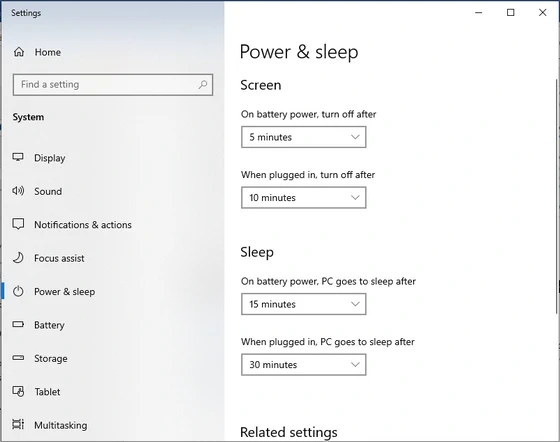
Method 1: Check and Turn Off System Power Management Settings
The QB abort error can occur if the Windows Power Management settings are enabled to sleep mode or standby mode. To resolve this, you can disable these settings by following these steps:
– Go to the Search field of the system.
– Click Power Options.
– Under Settings, turn off the power options – sleep and standby.
Method 2: Rename the QBWUSER.ini File
The QBWUSER.ini file contains the initialization information related to QuickBooks. If, for any reason, this QBWUSER.ini file gets corrupted or damaged, it can cause the QuickBooks abort error. You can rename this file to create a new one.
Steps to rename QBWUSER.ini file:
– Locate the folder where the QBWUSER.ini file is saved.
– Right-click on the QBWUSER.ini file and click Rename.
– Insert .old at the end of file name.
QuickBooks then automatically recreates the QBWUSER.ini file.
Method 3: Check your Portable Drive
If you are facing the “QuickBooks abort error” while accessing company files in a multi-user environment, then you can check the portable drive. Sometimes, this error occurs due to issues with your drive. Make sure your portable drive is connected correctly and working properly. Also, it should have enough available space to store the company files.
Method 4: Rename .ND (Network Data) File
The .ND file plays an important role in running QuickBooks in a network environment. If this file gets corrupted, it impacts the network connectivity, resulting in various errors, including the QuickBooks abort error. You can recreate the .ND file in QuickBooks by renaming it to fix the error. Here’s how to do so:
– Go to the folder where the company file is saved.
– Locate the .ND file, which is similar to the company file.
– Right-click on the file and then click Rename.
– Provide a different name or just add .old at file name’s end.
Similarly, you can rename each .ND file. When you rename the files, QuickBooks will create the new ones.
Method 5: Check the Network Connection
The QuickBooks abort error can also occur if you have an unstable network connection. It usually occurs when you try to open the company file stored on another system. It occurs due to connectivity problems between QuickBooks and company files or incorrect network configuration settings. To troubleshoot this issue, reconfigure the settings and fix the network-related issues.
Method 6: Check and Enable Hosting Settings
You can encounter the QuickBooks abort error due to incorrect Hosting Settings. You can check and enable multi-user Hosting Settings on the server system (hosting the company file). Here are the steps to do so:
– Open QuickBooks on the server system hosting the company file.
– Navigate to File and then click the Utilities option.
– Click Host Multi-User Access and then click OK.
Method 7: Repair your Company File
Sometimes, the QuickBooks abort error appears due to inconsistencies caused by corrupted or damaged company file. You can repair the company file using the Intuit-recommended File Doctor tool. Here are the steps to run this tool:
– First, download, install, and launch QuickBooks Tool Hub.
– In Tool Hub, click Company File Issues.
– Click the Run QuickBooks File Doctor option.
– In the dialog box that opens, click on the dropdown button to select the company file.
– Click the Check your file option and then click Continue.
– The tool prompts you to fill in the admin credentials. Enter the details and click Next.
The tool may fail to respond if the company file is large-sized or highly corrupted. If the QuickBooks File Doctor tool fails to repair the company file for any reason, then try to rebuild the QuickBooks company file, using the Verify and Rebuild utility.
Quick and Secure Method to Repair QuickBooks Company File
You can use a professional third-party QuickBooks repair tool, such as Stellar Repair for QuickBooks. It can repair QuickBooks company file created in any of the QuickBooks application versions. Also, it helps recover all the damaged company file data, including customer accounts, vendor data, and reports with absolute precision and 100% integrity. This QuickBooks repair tool can be installed on any version of Windows operating system without any issue. You can use the software’s demo version to check how it works. Watch this video:
https://www.youtube.com/watch?v=Iqlx7irLSEc
Closure
The QuickBooks abort error is unpredictable and can occur due to different reasons. Some common causes for this error are discussed in this post. You can try the troubleshooting methods mentioned above to fix the error. The error may also occur due to corrupted QuickBooks company file. In such a case, for quick file repair, you can try Stellar Repair for QuickBooks. It can repair and restore the QBW file and help you fix corruption-related issues, including QuickBooks abort error.
Did this article help you? If so, please tell me in a comment what do you think about it.
Don’t miss any of our future video tutorials, follow us on Youtube. Like us on Facebook. Join our Best Deals Telegram Channel. Join our Android TV Box Firmware Updates Telegram Channel. Subscribe now to our newsletter. If you need Tech Reviewer or Youtube Influencer read this. Donate now here to support CGR Team!