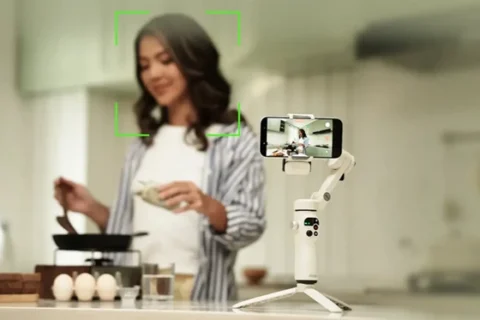
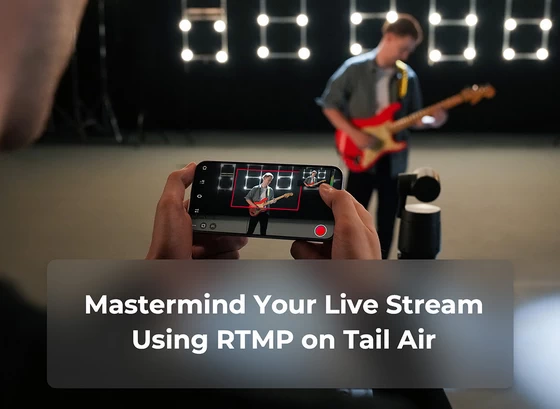
In a world of sharing, OBSBOT Tail Air is created not just for making videos but also to simplify the video streaming process for you. In today’s guide, we will demonstrate how Tail Air leverages RTMP (Real-Time Messaging Protocol) to achieve this goal.
Introduction to RTMP
The Real-Time Messaging Protocol (RTMP) is a staple in the world of live streaming. Developed initially by Macromedia and now owned by Adobe, RTMP is a protocol designed for the high-performance transmission of audio, video, and data between a server and a client over the internet, in real-time.
This protocol has stood the test of time due to its ability to provide seamless, low-latency capabilities, making it a popular choice for live streaming and online broadcasting. Whether you’re planning to stream a live event, host an online broadcast, or set up a video conference, understanding and leveraging RTMP can greatly enhance the quality of your streams and overall viewer experience.
In this article, we will guide you on how to use OBSBOT Tail Air to start a live stream via RTMP, and we’ll use Facebook as an example for live streaming.
Preparing to Live Stream on Facebook
Before you begin your live stream using RTMP on Facebook, you’ll need to get the Facebook Stream Key and Server URL. We’ll guide you through the steps below.
Step 1: Navigate to your Facebook profile page and click on “Live video”.
Step 2: Select “Go live”.
Step 3: Locate the Stream Key.
Step 4: Click on “Advanced Settings” to access the “Server URL” details.
Start Facebook RTMP Live Streaming on Tail Air
Step 1: Launch the “Obsbot Start” app and connect it to the Tail Air. Press and hold the Live Stream/Record Button to access the live stream interface.
Step 2: Select the “RTMP” option, then press “+” to create an RTMP.
Step 3: Input the corresponding information from the Facebook page and click “Save”.
Step 4: Click the “Start” button.
Step 5: After setting up the Obsbot Start app, the video captured by the Tail Air will appear on your Facebook window. Click “Go Live” to begin your live stream.
Step 6: You are now live.
Did this article help you? If so, please tell me in a comment what do you think about it.
Don’t miss any of our future video tutorials, follow us on Youtube. Like us on Facebook. Join our Best Deals Telegram Channel. Join our Android TV Box Firmware Updates Telegram Channel. Subscribe now to our newsletter. If you need Tech Reviewer or Youtube Influencer read this. Donate now here to support CGR Team!