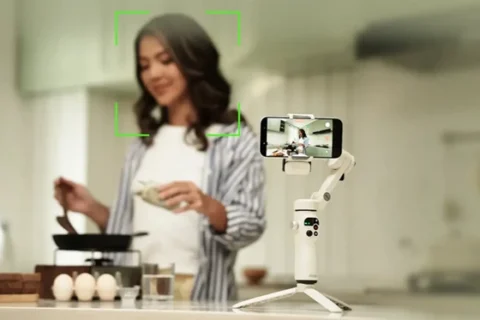
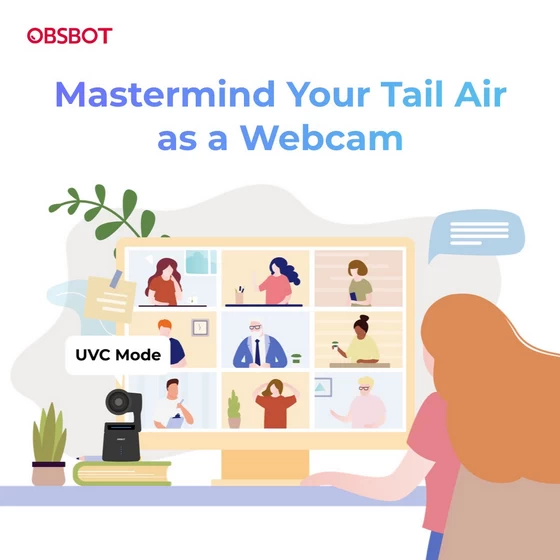
The OBSBOT Tail Air can function as a high-quality streaming camera due to its multiple connection interfaces. Its impressive video performance and advanced AI features also make it a great webcam. In this detailed tutorial, we’ll guide you step-by-step on how to use your OBSBOT Tail Air as a webcam.
Preparation
Before we begin, ensure you have the following items ready:
– OBSBOT Tail Air
– USB-C cable
– Computer with OBSBOT Center installed
– Phone/tablet with Obsbot Start installed (Optional)
Activate UVC Mode for Tail Air
Step 1: Connect your Tail Air to your phone or computer (either wirelessly or with a wired connection).
Step 2: In the OBSBOT Center software, locate the “Output” column in the “More” settings. Alternatively, you can find it in your Obsbot Start.
Step 3: Turn on the UVC Mode button. Interface in OBSBOT Center ⬇ Interface in Obsbot Start ⬇
In the status bar, the connection method will be displayed as a UVC connection in OBSBOT Center.
Note: The recording/shooting feature and media folder of the device will be unavailable after the activation of the UVC mode.
Now you can start using OBSBOT Tail Air as a webcam for a variety of uses!
You can access the video source from OBSBOT Tail Air in Zoom, Teams, and other software of your choice.
OBSBOT Tail Air video source in Zoom ⬇
OBSBOT Tail Air video source in Microsoft Teams ⬇
Did this article help you? If so, please tell me in a comment what do you think about it.
Don’t miss any of our future video tutorials, follow us on Youtube. Like us on Facebook. Join our Best Deals Telegram Channel. Join our Android TV Box Firmware Updates Telegram Channel. Subscribe now to our newsletter. If you need Tech Reviewer or Youtube Influencer read this. Donate now here to support CGR Team!