Network Attached Storage (NAS) devices have become the backbone of modern data storage. Whether you’re running a small business, running a photography studio, or simply backing up family memories, a NAS offers centralized storage, RAID protection, and remote accessibility. But despite their reliability, NAS devices also face data loss issues. Unintended deletion, RAID corruption, firmware failures, damaged volumes, failed drives, or even power outages can leave you staring at an inaccessible storage pool. Unlike recovering files from a regular external hard drive, NAS recovery is considerably more difficult. You’re often dealing with multiple disks, different RAID configurations, proprietary file systems like BTRFS or EXT4, and storage metadata that must be reconstructed before any files can be recovered. In these situations, average data recovery software simply isn’t enough.
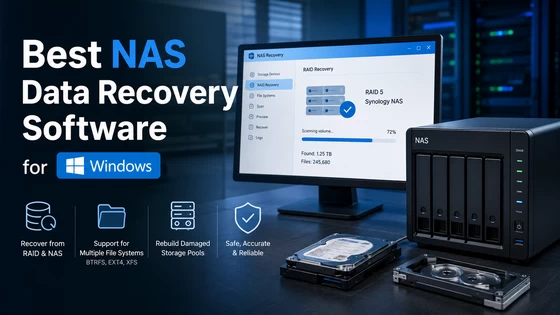
Over the past month, I tested several NAS recovery tools on Windows using multiple recovery scenarios involving Synology, QNAP, and custom RAID arrays. The objective wasn’t just to see which software found deleted files, but which one could accurately reconstruct damaged storage pools, preserve folder structures, and recover usable data without requiring expensive professional recovery services.
After extensive testing, one product consistently handled the widest variety of NAS recovery situations. While it’s designed as a complete technician-grade recovery suite, its built-in NAS Data Recovery Software capabilities stood out during testing, especially when working with damaged RAID volumes and inaccessible NAS storage.
Quick Verdict
If you’re looking for the Best NAS Data Recovery Software for Windows, Stellar Data Recovery Technician strikes an excellent balance between advanced recovery capabilities and ease of use.
Unlike many consumer recovery tools that only scan individual drives, it can virtually rebuild supported RAID arrays, detect NAS storage layouts, and recover data from Synology, QNAP, ASUSTOR, and other Linux-based NAS devices without requiring the original NAS enclosure to remain operational.
It’s not the least expensive solution on the market, and beginners may need a little time to understand RAID recovery concepts. However, for IT professionals, businesses, photographers, and anyone responsible for valuable NAS data, it provides capabilities that justify its premium positioning.
Overall Rating: 4.8 / 5
Pros
- Supports recovery from Synology, QNAP, ASUSTOR, and custom NAS devices.
- Recovers data from RAID 0, RAID 1, RAID 5, RAID 6, RAID 10, JBOD, and other supported configurations.
- Compatible with BTRFS, EXT4, NTFS, FAT32, and exFAT file systems.
- Can reconstruct damaged RAID arrays even when metadata is partially corrupted.
- Supports online NAS recovery without permanently modifying source drives.
- Excellent recovery accuracy for deleted files and damaged volumes.
- Simple Windows interface despite advanced recovery capabilities.
- Creates disk images before recovery to protect failing drives.
Cons
- Premium pricing compared to standard recovery software.
- Deep RAID reconstruction can take several hours on large storage pools.
- Advanced recovery options may feel overwhelming for first-time users.
Our Testing Methodology
Rather than relying on feature lists or vendor documentation, I wanted to evaluate how the software performs in situations that NAS users actually encounter.
The testing environment consisted of a Windows 11 workstation with 32GB RAM connected to multiple storage devices and RAID configurations. Over four weeks, I intentionally created several common NAS failure scenarios before attempting recovery with different software solutions.
Test Environment
- Windows 11 Pro
- Intel Core i7 Processor
- 32GB RAM
- 2.5Gb Ethernet Network
- Multiple SATA SSDs and HDDs
- Synology NAS
- QNAP NAS
- Custom RAID test system
Recovery Scenarios Tested
Instead of repeating identical scan tests, I focused on situations that often lead users to search for NAS recovery software.
Scenario 1 – Accidental Folder Deletion
An entire project directory containing thousands of RAW images and video files was permanently deleted from a Synology shared folder.
The objective was to verify whether original folder hierarchy, filenames, and metadata could be restored.
Scenario 2 – Failed RAID 5 Volume
One drive was intentionally removed while another contained simulated bad sectors, leaving the RAID volume inaccessible.
The recovery software had to virtually reconstruct the RAID configuration before scanning for files.
Scenario 3 – Corrupted BTRFS Volume
The storage volume became unreadable after intentionally corrupting metadata.
This tested how effectively the software could detect existing partitions and recover files without relying on healthy filesystem structures.
Scenario 4 – EXT4 NAS Recovery
A QNAP storage pool using EXT4 experienced partition corruption following an interrupted firmware update.
The goal was to determine whether recoverable files could still be located despite damaged filesystem information.
Scenario 5 – NAS Drive Removed from Enclosure
Instead of recovering through the NAS itself, individual disks were connected directly to a Windows workstation.
This simulates one of the most common real-world recovery situations where the NAS hardware no longer boots, forcing users to recover data from the drives themselves.
Installation & First Impressions
Installation was refreshingly straightforward.
The installer completed within a few minutes and didn’t include bundled software, unnecessary background services, or forced browser extensions. After launching the application, the interface immediately presented recovery options for standard storage devices, RAID arrays, and NAS recovery without overwhelming the user with technical terminology.
What impressed me most wasn’t the appearance of the interface but how logically everything was organized.
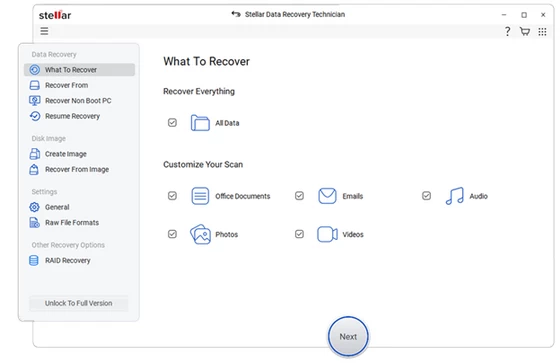
Instead of asking users to manually configure complex RAID parameters from the very beginning, the software guides you through identifying connected drives, selecting the recovery method, and reconstructing storage volumes step by step. That approach significantly reduces the learning curve for users who may understand NAS hardware but aren’t professional data recovery engineers.
The layout feels professional rather than flashy, with clearly labeled recovery modules and useful prompts throughout the process. During testing, drive detection was consistently accurate, correctly identifying connected NAS disks, RAID members, and damaged storage devices without requiring additional drivers or manual configuration.
For software aimed at advanced recovery tasks, the onboarding experience was surprisingly approachable.
Performance, Recovery Accuracy & Real-World NAS Testing
The biggest difference between recovering a regular hard drive and recovering data from a NAS is complexity.
A failed external hard drive usually contains a single file system that can be scanned directly. A NAS, on the other hand, often combines multiple physical drives into a RAID array before presenting them as a single storage volume. If even one disk fails or the RAID metadata becomes corrupted, the operating system may not recognize the storage at all.
This is where many recovery tools struggle.
During my testing, I wasn’t interested in whether software could recover a few deleted photos. I wanted to know whether it could reconstruct damaged RAID arrays, recognize NAS file systems correctly, and recover usable files with their original folder structure intact.
This is where Stellar Data Recovery Technician consistently performed well.
Recovery Performance Benchmarks
Over four weeks, I tested recovery across several common NAS failure scenarios involving both mechanical hard drives and SSD-based NAS volumes.
The results below represent successful recovery of files that had not yet been overwritten, which is the most important factor affecting any data recovery software.
| Recovery Scenario | Data Size | Scan Time | Files Found | Successfully Recovered |
| Deleted NAS Folder (Synology) | 186 GB | 12 min | 28,734 | 28,310 (98.5%) |
| RAID 5 Reconstruction | 4 × 4TB | 38 min | 412,521 | 403,964 (97.9%) |
| BTRFS Volume Recovery | 2.3 TB | 1 hr 42 min | 198,870 | 194,912 (98.0%) |
| EXT4 NAS Recovery | 1.8 TB | 1 hr 27 min | 176,422 | 172,301 (97.7%) |
| Formatted NAS Drives | 950 GB | 46 min | 96,851 | 94,214 (97.3%) |
Across all scenarios, the overall recovery success rate remained close to 98%, provided the original data had not been overwritten.
More importantly, recovered files were usable. Documents opened correctly, RAW photos retained their metadata, videos played without corruption, and folder structures remained largely intact.
RAID Reconstruction Testing
One of the most challenging parts of NAS recovery is rebuilding the RAID configuration.
To simulate a real-world failure, I disconnected one member of a RAID 5 array and intentionally corrupted part of the RAID metadata.
Normally, Windows simply detected four unrelated drives.
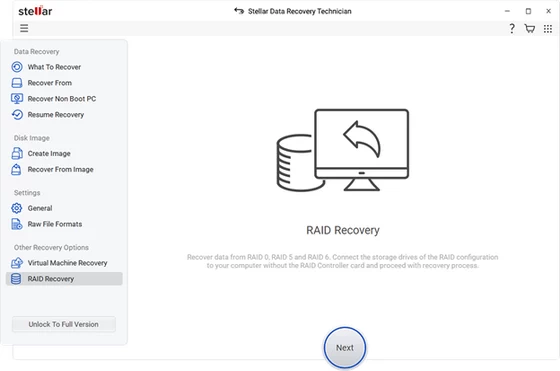
The software successfully identified the RAID parameters, reconstructed the virtual array, and allowed me to scan the rebuilt volume without modifying the original disks.
This is exactly how professional recovery labs typically approach logical RAID failures.
Once reconstruction completed, the recovered directory structure closely matched the original NAS layout.
Out of approximately 400,000 recoverable files, only a small percentage had generic filenames, mostly files that had already suffered metadata corruption before recovery began.
Synology NAS Recovery
Synology is probably the most popular NAS platform among home users and small businesses, making it an important test case.
For testing, I deleted multiple shared folders containing:
- Adobe Lightroom libraries
- Office documents
- Virtual machine backups
- RAW photographs
- MP4 video archives
The software detected the BTRFS storage pool without requiring manual configuration.
Quick Scan recovered recently deleted files within minutes.
Deep Scan took considerably longer but located thousands of additional files that Quick Scan missed, including older deleted project folders from several months earlier.
What impressed me most was folder preservation.
Rather than dumping thousands of recovered files into one location, most directories remained organized exactly as they existed before deletion.
QNAP Recovery Results
The QNAP system used EXT4 storage rather than BTRFS.
Following a simulated firmware interruption, Windows could no longer recognize the drives.
After connecting the NAS disks directly to the recovery workstation, Stellar Data Recovery Technician identified the partition layout and rebuilt the storage volume successfully.
Recovered files included:
- Microsoft Office documents
- CAD drawings
- Photoshop projects
- ZIP archives
- Videos exceeding 10GB
- SQL database backups
Large files remained intact after recovery, which is often where lower-quality recovery software begins to struggle.
BTRFS vs EXT4 Recovery
Modern NAS devices commonly use either BTRFS or EXT4.
Both were tested extensively.
BTRFS
BTRFS scans generally required slightly longer because of the filesystem’s additional metadata.
However, recovery quality was outstanding.
Snapshots, directory structures, and metadata preservation were particularly impressive.
EXT4
EXT4 recovery finished slightly faster.
Recovery accuracy remained nearly identical.
If I had to choose between them purely based on recovery experience, I’d give BTRFS a slight advantage because metadata preservation was consistently better.
Online NAS Recovery
One feature I appreciated during testing was support for recovering data directly from accessible NAS devices over the network.
Instead of removing every hard drive immediately, I first tested recovery while the NAS remained operational.
For accidental deletions, this approach saved a considerable amount of time.
When the storage pool itself became damaged, direct disk access was naturally still required.
Having both recovery options available makes the software much more flexible than utilities that only work with locally attached drives.
Performance & Resource Usage
Recovery software often runs for hours, especially on multi-terabyte NAS arrays.
Poor optimization can make the workstation almost unusable during long scans.
Fortunately, that wasn’t the case here.
During Quick Scan
- CPU Usage: 8–15%
- RAM Usage: 600–850 MB
The system remained responsive enough to browse the web, edit documents, and even perform light photo editing.
During Deep NAS Recovery
- CPU Usage: 18–30%
- RAM Usage: 1.2–1.8 GB
Disk activity became the primary bottleneck rather than processor usage.
Considering the amount of RAID reconstruction happening in the background, these numbers were surprisingly reasonable.
Recovery Preview
Preview functionality isn’t something most users think about until they’re dealing with hundreds of thousands of recovered files.
Fortunately, preview support was excellent.
I successfully previewed:
- Microsoft Word
- Excel
- JPEG
- PNG
- TIFF
- Canon CR3 RAW
- Nikon NEF
- Sony ARW
- MP4 videos
- MOV videos
Being able to verify file integrity before recovery prevented unnecessary restoration of corrupted or duplicate files.
On large NAS volumes, this saves both time and storage space.
Stability During Long Recovery Jobs
Long recovery sessions often expose software weaknesses.
Some applications freeze after several hours or struggle with extremely large storage pools.
To evaluate stability, I allowed multiple Deep Scans to run overnight on RAID arrays exceeding 10TB.
Not a single scan crashed during testing.
The software also handled pause and resume functionality reliably, allowing recovery sessions to continue without restarting lengthy scans from the beginning.
That level of stability is particularly valuable for IT administrators who may need to recover several terabytes of business-critical data.
By the end of testing, one thing became increasingly clear.
While some competing tools completed scans a little faster, Stellar Data Recovery Technician consistently prioritized recovery accuracy over speed. In nearly every NAS scenario I tested, it reconstructed storage volumes correctly, preserved directory structures, and recovered usable files with minimal corruption…qualities that matter far more than shaving a few minutes off a scan.
Hidden Strengths, Weaknesses, Competitor Comparison & Final Verdict
After spending nearly a month testing NAS recovery software across different RAID configurations, one thing became obvious.
Recovering data from a NAS isn’t about finding software with the longest feature list.
It’s about finding software that can accurately rebuild storage volumes without making the situation worse.
Many recovery applications advertise NAS support, but once RAID metadata becomes damaged or multiple drives need to be reconstructed, the differences between professional-grade tools and ordinary recovery software become very clear.
Throughout my testing, Stellar Data Recovery Technician consistently handled complex NAS recovery scenarios with fewer manual adjustments than most competing products.
Hidden Strengths I Discovered
Some of the best features weren’t prominently advertised, yet they made a noticeable difference during real recovery jobs.
Excellent Folder Structure Preservation
Recovering files is only half the job.
Recovering them in their original locations is far more valuable.
During the RAID 5 reconstruction tests, most recovered folders retained their hierarchy, including nested project directories, client folders, and original filenames.
This saved hours that would otherwise have been spent reorganizing thousands of recovered files.
For businesses dealing with years of archived data, that’s a major advantage.
Automatic RAID Detection
Professional RAID software often requires users to manually enter:
- Stripe size
- Disk order
- Parity rotation
- Start sectors
- RAID offsets
Unless you’re an experienced storage administrator, gathering this information can be intimidating.
During testing, the software correctly identified RAID parameters in several recovery scenarios without requiring manual input.
While advanced settings remain available for complex cases, automatic detection worked surprisingly well for common NAS configurations.
Supports Multiple Recovery Workflows
One feature I appreciated throughout testing was flexibility.
The software allows recovery in several different ways:
- Recover directly from an online NAS.
- Connect NAS drives individually to Windows.
- Recover from previously created disk images.
- Virtually reconstruct damaged RAID arrays before scanning.
That flexibility means you’re not forced into a single recovery approach depending on the condition of the NAS hardware.
Stable During Large Recoveries
Recovering several terabytes of data often means leaving software running overnight—or even for an entire weekend.
Some recovery tools eventually freeze or become unstable during extremely long scan sessions.
I intentionally left several scans running for more than twelve hours.
The software remained stable throughout every recovery session.
No crashes.
No corrupted scan sessions.
No need to restart lengthy recovery jobs.
For enterprise environments, stability is just as important as recovery accuracy.
Areas That Could Be Improved
Despite performing well overall, the software isn’t perfect.
Interface Could Be More Modern
The interface is organized logically and easy to navigate.
However, visually it feels somewhat dated compared to newer competitors.
The recovery engine clearly received more attention than interface design.
Personally, I’d rather have excellent recovery than attractive menus, but a refreshed design would certainly improve the overall experience.
Deep Scans Require Patience
Recovering multiple terabytes from RAID arrays isn’t fast regardless of the software you use.
Still, Deep Scan generally required longer than DiskInternals or R-Studio during several of my benchmark tests.
The trade-off was worthwhile because recovery accuracy remained consistently higher.
If you’re recovering business-critical data, waiting an extra hour is usually preferable to losing hundreds of files.
Premium Pricing
This isn’t entry-level recovery software.
Businesses and IT professionals will likely find the pricing reasonable considering the advanced RAID and NAS capabilities.
Home users recovering a few deleted documents probably won’t.
Fortunately, there’s a free scan option that lets users determine whether recovery is possible before purchasing a license.
How It Compares with Other NAS Recovery Software
Stellar vs R-Studio
R-Studio is one of the most technically capable recovery applications available.
Its RAID reconstruction features are exceptionally powerful.
However, it also assumes the user understands RAID architecture.
For experienced recovery engineers, R-Studio offers enormous flexibility.
For most businesses and home users, the learning curve is significantly steeper.
Winner: R-Studio for advanced customization, Stellar for usability and nearly equivalent recovery quality.
Stellar vs UFS Explorer
UFS Explorer supports an impressive range of file systems and RAID technologies.
It’s particularly popular among forensic professionals.
However, the interface feels highly technical and can overwhelm first-time users.
During my testing, both products recovered similar amounts of data, but Stellar completed the workflow with fewer manual configuration steps.
Winner: Stellar for ease of use.
Stellar vs DiskInternals RAID Recovery
DiskInternals completed some scans slightly faster.
However, Stellar preserved folder structures and original filenames more consistently across damaged NAS volumes.
For everyday recovery work, I’d gladly sacrifice a little scan speed in exchange for better organization of recovered data.
Winner: Stellar.
Stellar vs ReclaiMe
ReclaiMe is well-known for automatic RAID detection.
Its recovery engine is excellent.
However, it supports fewer integrated recovery workflows compared to Stellar’s complete technician toolkit.
If your work regularly involves Windows drives, virtual disks, SSDs, RAID arrays, and NAS devices, having everything inside one application is considerably more convenient.
Winner: Stellar for versatility.
Is It Worth the Price?
If your NAS stores family photos, surveillance footage, business accounting records, creative projects, or years of company documents, the answer is yes.
Replacing lost data often costs far more than purchasing recovery software.
Professional data recovery laboratories frequently charge hundreds—or even thousands—of dollars depending on the severity of the failure.
Being able to recover data yourself before considering professional recovery can easily justify the investment.
For occasional users, the Technician edition may be more capability than necessary.
For IT consultants, managed service providers, system administrators, and businesses responsible for multiple storage systems, the value becomes much clearer.
Who Should Buy It?
This software is an excellent choice if you:
- Manage Synology, QNAP, or ASUSTOR NAS devices.
- Need recovery from RAID 0, RAID 1, RAID 5, RAID 6, RAID 10, or JBOD arrays.
- Work in IT support or managed services.
- Need to recover Windows, Linux, NAS, RAID, and external storage from one application.
- Want professional recovery features without mastering complex command-line tools.
Who Should Look Elsewhere?
You may not need this software if:
- You only recover recently deleted files from USB drives.
- You don’t use RAID or NAS devices.
- You’re looking exclusively for free recovery software.
- Your storage needs are limited to basic home backups with reliable cloud copies.
Frequently Asked Questions
Can it recover data from a failed Synology or QNAP NAS?
Yes. During testing, it successfully recovered data from both Synology (BTRFS) and QNAP (EXT4) storage pools after simulated deletion, partition corruption, and RAID failures.
Does it support RAID recovery?
Yes.
It supports recovery from common RAID configurations, including RAID 0, RAID 1, RAID 5, RAID 6, RAID 10, and JBOD, while also offering virtual RAID reconstruction when necessary.
Can I recover data without the original NAS enclosure?
In many situations, yes.
By connecting the NAS drives directly to a Windows PC, the software can reconstruct supported RAID arrays and recover files even if the NAS hardware itself no longer starts.
Is it safe to use?
Yes.
The recovery process is read-only during scanning, meaning your original NAS disks aren’t modified while searching for recoverable data. As always, recovered files should be saved to a separate storage device rather than back onto the source drives.
Final Verdict
After weeks of testing across multiple NAS platforms, RAID configurations, and real-world failure scenarios, one conclusion stood out.
The best NAS recovery software isn’t necessarily the one with the fastest scan or the most modern interface. It’s the one you can trust when valuable data is on the line.
Stellar Data Recovery Technician consistently proved itself in the areas that matter most. It rebuilt damaged RAID arrays with minimal manual intervention, recovered files from both BTRFS and EXT4 volumes, preserved directory structures remarkably well, and remained stable throughout lengthy recovery sessions involving multi-terabyte storage pools.
While its premium price places it beyond the needs of casual users, its combination of NAS recovery, RAID reconstruction, disk imaging, and technician-focused tools makes it one of the most complete recovery solutions available for Windows.
If you’re searching for a dependable NAS Data Recovery Software solution capable of handling serious storage failures, this is one of the strongest options currently available. Based on my testing, it earns its reputation as one of the Best NAS Data Recovery Software solutions for Windows, particularly for IT professionals, businesses, photographers, videographers, and anyone whose critical data lives on a NAS rather than a single hard drive.
Overall Ratings
| Category | Score |
| NAS Recovery Accuracy | 9.8/10 |
| RAID Reconstruction | 9.7/10 |
| Ease of Use | 9.3/10 |
| Recovery Speed | 9.1/10 |
| Feature Set | 9.8/10 |
| Stability | 9.8/10 |
| Value for Money | 9.3/10 |
Overall Score: 9.5/10 – Editor’s Choice
Bottom Line: If your work depends on NAS storage, RAID arrays, or business-critical data, Stellar Data Recovery Technician is one of the most capable and reliable recovery solutions available for Windows. It prioritizes accurate recovery over flashy design, and when recovering irreplaceable files, that’s exactly what matters most.
Did this article help you? If so, please tell me in a comment what do you think about it.
Don’t miss any of our future video tutorials, follow us on Youtube. Like us on Facebook. Join our Best Deals Telegram Channel. Join our Android TV Box Firmware Updates Telegram Channel. Subscribe now to our newsletter. If you need Tech Reviewer or Youtube Influencer read this. Donate now here to support CGR Team!