All You Need to Know About Photoshop Elements: Easy Photo Editing
Want to edit photos, but Photoshop is hard to understand? Of course, there is a way out, and it’s not even Lightroom. Take a look at Adobe Photoshop Elements, a simplified version of one of the most famous photo editors. Today we will tell you how to use this software and discuss all its advantages and disadvantages. By the way, if you want to know more about Adobe Lightroom vs. Photoshop topic, we recommend you check out Skylum’s blog.

Let’s Start with the Basics: What is Photoshop Elements?
This is a photo-editing software suite developed by Adobe for amateur photographers. It provides users with a comprehensive set of tools and features for editing and enhancing photos, including basic editing tools, retouching and restoration features, and advanced options such as layers and masks. Photoshop Elements offers two main editing modes:
– Quick Edit mode provides a simplified interface for making basic adjustments such as cropping, color correction, and exposure adjustment.
– Expert mode gives more advanced tools and features for users with more editing experience.
The software also includes the Organizer, which allows users to manage their photos. Elements is a standalone product available as a perpetual license or as a subscription through Adobe Creative Cloud. It is a more affordable and easier-to-use alternative to the full version of Photoshop for professional photographers and graphic designers. With Photoshop Elements, anyone can easily edit and enhance their photos without advanced technical skills or extensive training.
How Does It Differ from the Original Photoshop?
You may have already looked at Adobe Lightroom vs. Photoshop topic, and there were obvious differences. In this case, we will evaluate the software in another way, because Elements is a simplified version of the original and it lacks some of the features that are mainly used in professional activities. So, what is missing in Photoshop Elements:
– Advanced editing tools. Elements include many powerful editing tools, but it lacks some of the more advanced features found in the full version of Photoshop, such as the ability to work with 3D images or create advanced composites.
– CMYK color mode support. Elements do not support the CMYK color mode used for printing, but the full version of Photoshop does.
– Limited RAW file support. Elements support editing RAW files but do not offer the same level of control and flexibility as the full version of Photoshop.
– Limited integration with other Adobe Creative Cloud applications. Elements is a standalone product and do not integrate with other Adobe Creative Cloud applications.
– Limited automation and action capabilities. Photoshop Elements does not have the same level of automation as the full version, which can limit the ability to create complex actions or workflows.
Overall, Photoshop Elements is a good choice for amateur photographers who want affordable and easy-to-use photo editing software. However, if you need more advanced features or need to work with professional-quality projects, the full version of Photoshop may be a better fit. As you can see, in the case of Adobe Lightroom vs. Adobe Photoshop contrast, there are clear disadvantages. In the case of Elements, you simply don’t get the advanced tools found in the full version.
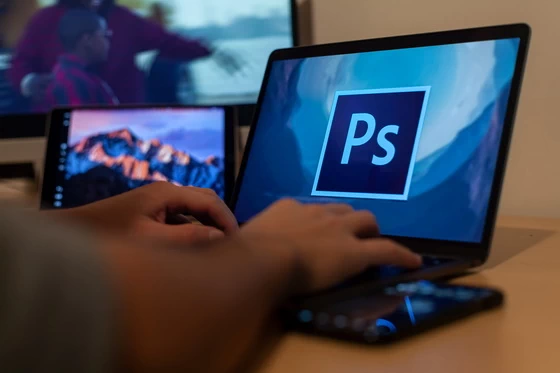
Photoshop Elements Tricks for Quick Photo Editing
In addition to a brief overview of the tools in Adobe Elements, we will also share some interesting photo editing tricks and features that might interest and inspire you to work with this software.
Editing Panels for Beginners and Pros
When you open a photo, you can choose between two modes: Quick and Expert. Just click on the buttons with the corresponding names at the top of the screen. You can switch between modes at any time. In Quick mode, you can adjust brightness, and sharpness, and apply effects with just a few clicks. When it comes to manual tools, there are a few types that can be used for basic corrections. For example, if you want to crop the image, remove a few pimples, or straighten the horizon. This mode is appropriate for photos that do not require extensive retouching. For example, you only need to make the image a little darker or lighter or correct the saturation of the colors. At any stage of editing, you can click Expert and go to professional mode. It is much closer to Photoshop in terms of functionality: there are layers, brushes, the usual retouching stamps, and the restoration brush. There are also more manual editing tools.
Classic Presets in One Click
When you select the Classic section of the Effects tab, the graphic editor offers several basic presets. For example, you can make your photo black and white or give it a vintage look. When you look at the strengths of Adobe Lightroom vs. Photoshop Elements, there aren’t many presets, but there are plenty to choose from. Also in the Quick menu on the left are six basic automatic tools for working with photos. To change any of the settings, click on the corresponding name and move the slider. The developers have managed to make working with the tools even easier — when you open any menu, you will see a list of presets.
Open Closed Eyes on a Photo
Photoshop Elements allows you to open a model’s eyes in a few clicks if she has accidentally closed them in a photo. The program offers four options for eyes to choose from, but a much better quality will be obtained if you take the second way — choose a photo from the same series with the same model, but where her eyes are open.

To Sum It Up
If you are an amateur, this version of the photo editor is perfect for you. But don’t limit your creativity. For example, AI-based photo editors are very popular these days. If you don’t want to spend hours in Photoshop, but don’t sacrifice the quality of editing, you should give Luminar Neo a try.
Did this article help you? If so, please tell me in a comment what do you think about it.
Don’t miss any of our future video tutorials, follow us on Youtube. Like us on Facebook. Join our Best Deals Telegram Channel. Join our Android TV Box Firmware Updates Telegram Channel. Subscribe now to our newsletter.