Free Cloud Backup Software for Windows: Backup PC Files Online
Benefits of Creating Cloud Backup for PC Files. Cloud backup is a backup method that uses a cloud service provider to store and manage your data copy, instead of using your own local hardware.
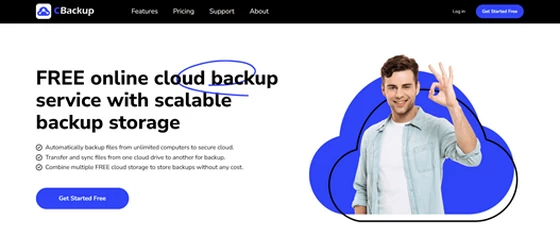
And cloud backup software can help you easily back up PC files online for protection and it also offers the following advantages:
– Make data safer: the traditional method of backing up data on external hard disk is easy to lose due to the external drive is easy to lose or suffer from theft, so your data will still be lost. While backing up to the cloud means you don’t have to worry about these problems.
– Support multi-platform management: If you back up your data to the cloud, then you can access your data in the cloud anytime and anywhere as long as you have an internet connection.
– More reliable data transmission: Since cloud backup is not limited by space and devices, there is no need to use data cables or backup to memory cards, so data transmission encryption is more secure.
Professional Free Cloud Backup Software for Windows PC – CBackup
Here we will introduce you the most reliable and professional free cloud backup software for computers – CBackup. This tool covers disk backup and file/folder backup to meet your different backup needs. It has an easy-to-understand interface that helps you complete cloud backup in just a few simple steps. It also has the following advantages:
– Scheduled backups: It enables you to set different backup frequencies including Daily, Weekly, and Monthly to back up your PCs to the cloud automatically.
– Incremental backup: When you run a scheduled backup, it will automatically run incremental backup to only backup newly-added or modified files, so to improve backup efficiency and save cloud space.
– Multiple clouds: It supports backing up PCs to multiple clouds, such as OneDrive, Google Drive, Dropbox, CBackup Cloud, etc. And you could use it to manage all cloud storage in one place.
– Cloud data transfer: Besides supporting backup PC to cloud, you can also backup files from one cloud drive to another, making it simple for cloud file transfer.
– Various Windows systems: It has good system compatibility and supports many different Windows operating systems, including Windows 11/10/8.1/8/7/XP, etc.
Step-by-Step Tutorial for Backing up PC Files to Cloud
You can follow the graphic tutorial below to start backing up your PC files to cloud using this st free PC cloud backup software – CBackup. The following steps are based on the example of backing up your data to OneDrive. You can choose a different cloud drive according to your needs.
Step 1. Register for one free account for CBackup. Download this free computer cloud backup software and install it. Then, log in.
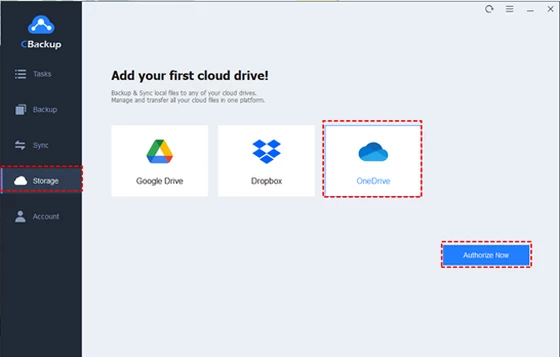
Step 2. After running and logging in to it, click Storage > OneDrive, and hit Authorize Now to grant your cloud access.
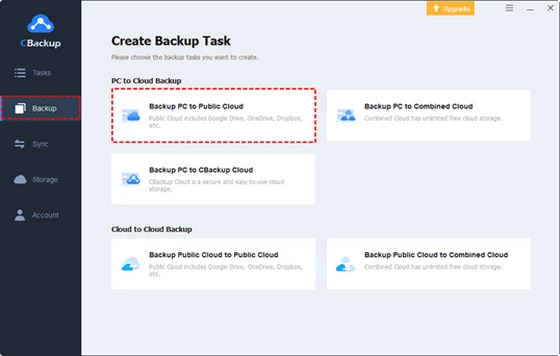
Step 3. Then, head to Backup and opt for Backup PC to Public Cloud. You could also use the Backup PC to CBackup Cloud option to save file backup to CBackup Cloud, with 10GB of free space and without adding clouds.
Step 4. On the next screen, select your PC files, folders, or hard drives as the source data, and choose the added OneDrive cloud as the destination path.
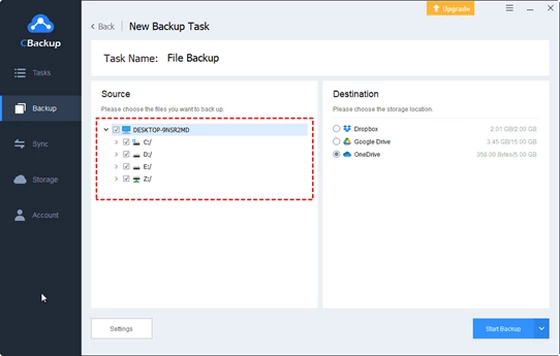
Step 5. You can set up auto PC backup in Settings > Scheduler (optional). Finally, click Start Backup to perform PC free cloud backup easily.
FAQs about PC Cloud Backup
#1. Is cloud backup free?
Yes, some cloud backup services offer free plans, but they usually come with limited storage. For instance, Google Drive provides 15GB, Dropbox offers 2GB, and OneDrive gives 5GB for free.
#2. How do I get 100GB free cloud storage?
Many cloud storage providers offer promotions or strategies to get more free cloud space, like Dropbox’s referral programs, but they are limited. One free way you could get 100GB or more free cloud backup space is to merge cloud drives using CBackup. This software is able to merge unlimited cloud accounts from supported public clouds, so the more accounts you have, the more space you get from the merge.
#3. How do I backup my computer to the cloud for free?
With the free computer cloud backup tool CBackup, you can backup your computer free to Google Drive, OneDrive, Dropbox, CBackup Cloud, and more clouds in one interface without switching accounts.
Summary
With the help of free PC cloud backup software CBackup, you could not only backup your computer to various cloud for free, also makes it easy to choose different backup frequencies to run backup tasks automatically. What’s more, it provides you with other useful functions like PC to cloud synchronization, cloud to cloud backup, cloud to cloud synchronization, and so on.
Did this article help you? If so, please tell me in a comment what do you think about it.
Don’t miss any of our future video tutorials, follow us on Youtube. Like us on Facebook. Join our Best Deals Telegram Channel. Join our Android TV Box Firmware Updates Telegram Channel. Subscribe now to our newsletter. If you need Tech Reviewer or Youtube Influencer read this. Donate now here to support CGR Team!