Take Full Control of Your ONEXSUGAR Sugar 1 with Sugar Console
⚡ Power Management: Efficiency Meets Longevity
Bypass Power Supply allows the adapter to supply power directly without charging the battery, reducing heat and extending battery life. The icon turns orange when active.Bypass Power Supply Percentage sets a charging limit. Once reached, charging stops and switches to bypass mode, balancing performance and battery health. 👇
🖥️ Display Control: Flexible Multi-Screen Experience
The Display settings in Sugar Console provide versatile options for managing single and dual screens. The Small Screen and Large Screen switches enable you to control which screen is active, while Dual Screen Fusion is designed for emulator games like NDS and 3DS that require dual-display functionality. The All Merge feature extends this capability to a broader range of applications. Additionally, you can adjust the screen scale (16:9, 3:2, 4:3, or custom), with excess areas covered by a selectable mask, allowing for a fully customized viewing experience.
🌡️ Cooling & Performance
OneXSugar offers flexible performance and cooling control through several options. The Fan Switch allows you to select between automatic, quiet, or fast fan modes, with the option to revert to manual fan control when turned off. The Fan Manual mode enables direct adjustment of fan speed, automatically returning to automatic mode when disabled. Additionally, Performance Selection lets you adjust the system’s TDP to optimize either performance or battery life according to your needs.
🌈 RGB Lighting
Sugar provides customizable RGB lighting for a personalized look. The Lighting Effect switch controls the body’s RGB lights, offering six dynamic special effects or a solid color mode where you can pick any color from the palette. Additionally, you can adjust the light effect brightness to suit your preference.
🎮 Controller Settings
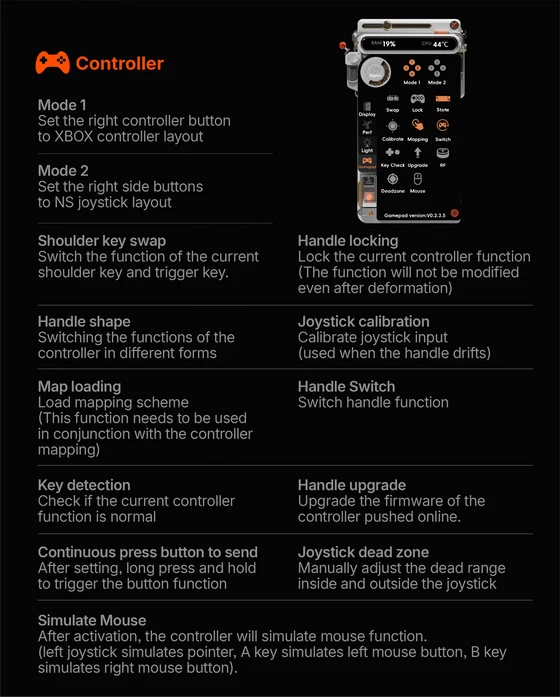
The Controller Settings allow you to manage various device functions for a personalized experience. You can adjust screen brightness by dragging sliders for the upper and lower screens, map controller buttons to suit your preferences, and monitor system status such as RAM usage and CPU temperature. The settings also include a sound transformation switch, options to configure display, performance, and sound, and an App Upgrade feature to update the Sugar Console software online. Additionally, you can restore default settings at any time.
Did this article help you? If so, please tell me in a comment what do you think about it.
Don’t miss any of our future video tutorials, follow us on Youtube. Like us on Facebook. Join our Best Deals Telegram Channel. Join our Android TV Box Firmware Updates Telegram Channel. Subscribe now to our newsletter. If you need Tech Reviewer or Youtube Influencer read this. Donate now here to support CGR Team!