How to backup and reset MacBook or iMac to factory settings
If you want to sell your MacBook or iMac, you should backup personal information and reset it to factory settings. We’ll explain how it works.
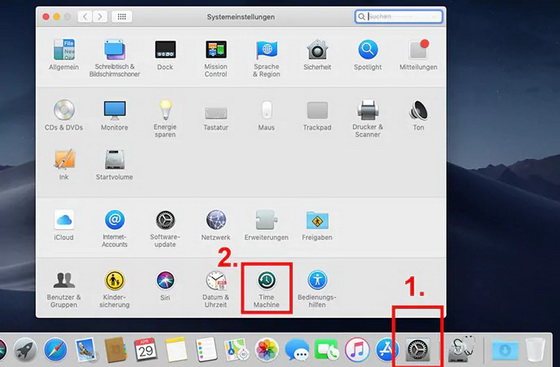
Step 1: Activate Time Machine
Before your Mac automatically takes over your backups for you, you must first activate Time Machine.
● Click on the small apple icon in the menu bar at the top left of the screen to access the Apple menu.
● Open System Preferences in the drop-down menu.
● Click on “Time Machine” in the System line to open the backup settings.
● Slide the slider on the left side from “Off” to the “On” position.
Step 2: Select Time Machine Backup Volume
Time Machine needs a drive on which it can store the backup copies of your files. The best way to do this is to use a volume that is at least three times the size of your data and at best is not in the same device. For example, an external hard drive is a good choice.
● Time Machine will now ask you to select a volume for your backups from the list of available drives.
● Make your choice by clicking on “Use backup disk”.
● In the dialog box, confirm that you want to delete all data from the selected disk to use it as a backup volume for Time Machine.
● If you have an Apple AirPort Time Capsule, you can select the “Configure other Time Capsule” option instead of a drive and let Time Machine guide you through the necessary WiFi configuration steps.
Step 3: Configuring Time Machine settings
Now the fine-tuning: Exclude certain items from the backup or disable backups while your MacBook is running on battery power.
● Click Options in Time Machine System Preferences.
● Here you can make some settings for your backup process and exclude certain items from the backup.
● To do this, click the small plus sign.
● In the dialog window, select a file or folder and click “Exclude”.
● All excluded items will appear in the list. To delete an item from the list, highlight it and click the minus sign.
Time Machine now automatically saves all changes you make to files and folders for you.
Before you start, you should back up your personal data.
Step 4: Reset iMac and MacBook to factory settings
● Connect to the Internet.
● Click on “Apple” > “Restart” in the menu. Now hold down the command key [⌘] and the key [R].
● Select “Disk Utility” from the menu and click “Continue”.
● Select your boot volume. In most cases, it will be the largest volume named Macintosh HD.
● Click the “Delete” button.
● Select “APFS” from the “Format” menu. You can also rename your hard disk. Then click “Delete” to confirm the operation.
● Once your hard disk is formatted, click Disk Utility and select Exit Disk Utility.
● Check that you are connected to the Internet. As usual, this is indicated by the icon in the upper right corner of the toolbar. If not, you can connect to a Wlan network here.
● Select “Install macOS again” and click on “Continue”. Now follow the instructions. The download and installation may take some time depending on the device and connection. Your MacBook will then be reset to factory settings.
Did this article help you? If so, please tell me in a comment what do you think about it.
Don’t miss any of our future video tutorials, follow us on Youtube. Like us on Facebook. Add us in your circles on Google+. Watch our photo albums on Flickr. Subscribe now to our newsletter.