In today’s world, where remote communication is crucial for remote teams and IT businesses, selecting a fast and reliable Remote Desktop solution is key. Remote desktop software allows users to connect to and control a computer or server from any location, regardless of distance. With these tools, you can perform various tasks such as system troubleshooting, server management, collaboration with work teams, and even remote gaming. Best Remote Desktop software such as Splashtop and TeamViewer have proven themselves in terms of security, speed, stability, and efficiency. But for gaming, their low latency and high performance make them perfect for smooth, lag-free remote play.

The Importance of Protocols in Remote Desktop Solutions
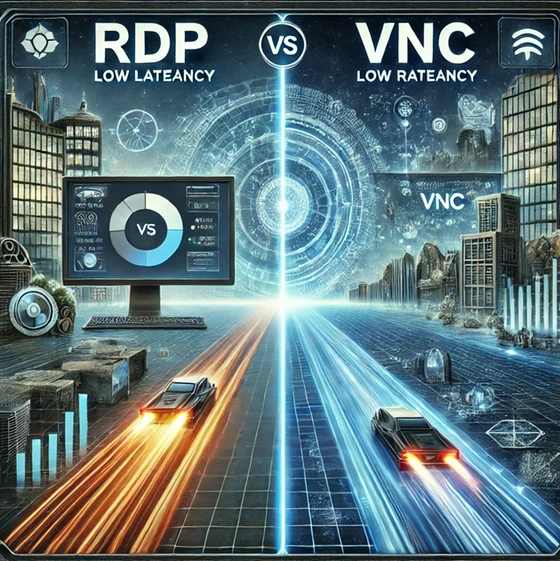
Protocols are the backbone of remote solutions and determine how information is transferred between devices. Therefore, choosing the right protocol directly impacts the speed, security, and stability of the connection. There are various protocols for remote desktops, each with its own features and uses. RDP and VNC are the most prominent protocols. RDP is a proprietary Microsoft protocol used to connect to Windows systems. This protocol provides a fast and secure user experience through encryption, data compression, file transfer, and peripheral support. In contrast, VNC is an open-source protocol that can be used to connect to various Linux, Mac, and Windows systems.
Factors such as speed, operating system support, security, and enterprise usability are important in the VNC vs RDP comparison. RDP is faster with better compression and is ideal for business environments with default security features such as 128-bit encryption. However, it is largely limited to Windows. In contrast, VNC is a more flexible option with broad compatibility across all operating systems. However, it requires more security and bandwidth due to the lack of built-in encryption and poorer performance on low-speed networks. Therefore, the protocol chosen for your remote desktop software will affect speed/performance, security, efficiency, and user experience. So you should make a choice that suits your standards.
10 Best Remote Desktop Software: Top Picks for High Speed and Security
Nothing is more frustrating than a slow and laggy remote connection. That’s why exploring the best remote desktop software and choosing a reliable tool to get started without hassle is essential.
1. TeamViewer
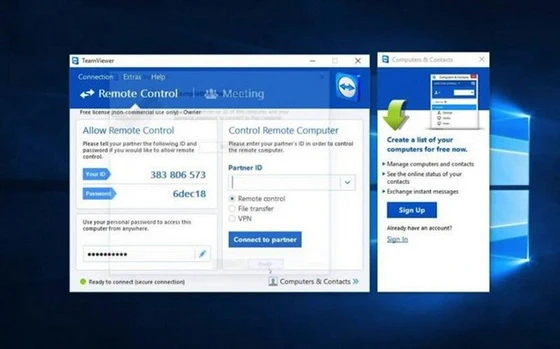
TeamViewer is a powerful remote control software allowing users to connect securely and efficiently to and manage other devices. It provides cross-platform access by supporting various platforms, including Windows, macOS, Linux, iOS, and Android. In addition to remote control, TeamViewer offers features such as file transfer, online meetings with screen sharing and video conferencing, and high security using end-to-end encryption and two-factor authentication. Also, this tool’s high ability to handle tasks requiring low latency and strong connectivity makes it an excellent option for remote desktop for gaming.
TeamViewer Pros
– Completely free for personal use
– Reliable speed and performance
– Support for various platforms
– High performance in different geographical locations
– Manage multiple sessions
– Optimized for gaming
– Compatibility with applications such as Microsoft Teams and Slack
– End-to-End encryption based on RSA (4096-bit) and AES (256-bit) to secure sessions
– Runs on web browsers such as Chrome, Firefox, Opera, and Edge
TeamViewer Cons
– Limited features in the free version
– High subscription fee
– Complexity for beginners
2. Splashtop
Splashtop is an advanced remote access software that allows users to connect to their devices with low latency and high quality. In addition to remote control, the software offers features such as multiple monitor support, HD video and audio streaming, video session recording, and remote printing. Splashtop also provides high security for users and organizations with device-based authentication, the ability to set custom access permissions, and active session monitoring. This tool has the performance, speed, and security to perform various tasks such as technical support, device management, team collaboration, and the best remote desktop for gaming.
Splashtop Pros
– Fast and lag-free connections
– User-friendly interface
– High resolution (up to 4K streaming at 40 frames per second)
– Support for various platforms
– Support for multiple monitors
– TLS and 256-bit AES encryption for increased privacy and connection security
– Efficient bandwidth usage
– Optimized for graphics-intensive applications such as gaming
– Fast file transfer with drag-and-drop capability
Splashtop Cons
– No free plan
– Confusing setup
– Lack of collaboration tools such as whiteboard or built-in video conferencing
3. AnyDesk
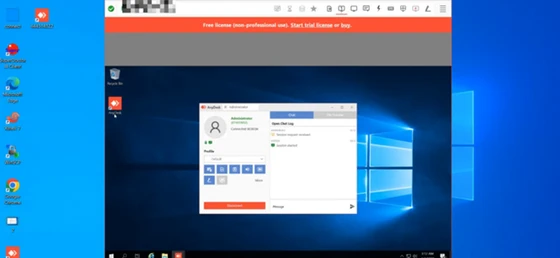
AnyDesk is a powerful remote access and control software that allows users to connect quickly and securely to and manage multiple devices. It provides a seamless user experience by supporting multiple platforms, including Windows, macOS, Linux, Android, and iOS. One of the standout features of AnyDesk is its high compatibility with heavy graphic tasks. Thanks to its unique DeskRT codec, it ensures high performance with low latency even during graphic-intensive operations, making it ideal for users needing a smooth experience in gaming and design software.
AnyDesk Pros
– Free for personal use
– Smooth connections with minimal latency
– Support for various platforms
– Quick and easy setup
– Provides TLS 1.2 and 2FA encryption to increase connection security
– Supports file sharing and text chat
– Low bandwidth consumption
– Works Well for Gaming
– supports permission settings to control access level of other users
AnyDesk Cons
– Crash during the drag-and-drop process
– Relatively complex user interface
– Limited and timed features in the free version
– Limited features for large businesses
– Expensive subscription plans
4. Zoho Assist
Zoho Assist is a web-based remote support and access software that allows users to connect to multiple devices without installing additional software. Key features include file transfers of up to 2GB, live chat and in-meet audio and video calling, and support for multiple monitors. Zoho Assist also effectively manages devices with remote diagnostics, power management options such as shutdown and reboot, and remote wake-on-LAN capabilities. This software offers high security with 256-bit SSL and AES encryption, multi-factor authentication, and firewall compatibility.
Zoho Assist Pros
– Free for personal use
– Fast and stable connections
– Extensive integration with the Zoho ecosystem and other applications
– Portable and easy to use
– Gaming-friendly
– Supports switching between multiple monitors during a session
– Supports multi-sessions
– Supports features like file transfer, session recording, and clipboard sharing
Zoho Assist Cons
– Limited features in the paid version
– Steep learning curve for beginners
– Limited customization options compared to some competitors
– Trouble connecting in certain areas
5. Microsoft Remote Desktop
Microsoft Remote Desktop establishes remote connections using the RDP protocol, a proprietary protocol from Microsoft that provides remote access to the Windows desktop. This tool is cross-platform and can be installed and used on Mac and Linux systems in addition to Windows. However, it can only connect to Windows systems or servers. Microsoft Remote Desktop has many advantages for remote desktop access and business system management. However, it is unsuitable for gaming, as high latency, frame rate limitations, and compressed image quality make for an unstable experience in competitive games.
Microsoft Remote Desktop Pros
– Free
– Supports file transfer
– Compatible with all platforms
– User-friendly and simple interface
– Supports data compression, TLS/SSL, and graphic transfer for a reliable connection
– Supports printing and file sharing
Microsoft Remote Desktop Cons
– No multi-session support
– Inability to connect to non-Windows systems
6. RustDesk
RustDesk is open-source remote access and control software that allows users to connect securely and quickly to various devices, such as Windows, Linux, and macOS. It can create stable and fast connections, providing users an efficient and uninterrupted experience even in poor network conditions. One of RustDesk’s outstanding features is the ability to host a server yourself (Self-Hosting), which provides organizations with complete control over data and security. RustDesk also offers an efficient and secure tool for remote device management with end-to-end encryption, file transfer, chat, and TCP tunneling.
RustDesk Pros
– Free and open-source
– Quick and easy access
– Compatible with all platforms
– Simple user interface
– High security
– Fast and smooth performance
– Hosting a private server for complete data control
– Strong community
RustDesk Cons
– Limited features
– Connection problems on limited networks
– High resource consumption on long-term connections
7. Chrome Remote Desktop
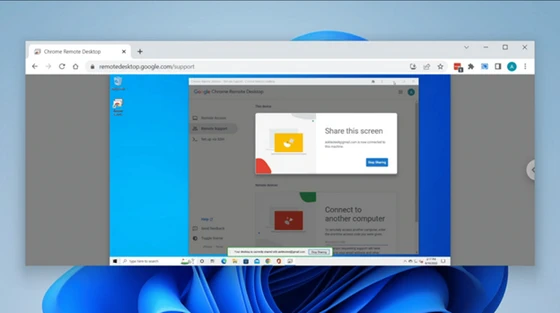
Chrome Remote Desktop is a free tool from Google that allows users to securely and easily connect to their computers from anywhere and using various devices. To use Chrome Remote Desktop, you only need to install this extension in the Chrome browser on both local and remote devices. Then, you can easily connect to the target device by entering the access code generated by the remote device. This service uses modern web technologies such as WebRTC to access computer files and programs. However, this tool may encounter problems such as latency and reduced graphics quality for games. Therefore, for an optimal gaming experience, it is recommended to use more specialized solutions optimized for online games.
Chrome Remote Desktop Pros
– Free
– Simple and user-friendly interface
– Compatible with all operating systems
– Easy to use and no need for complex configuration
– Increase the security of connections with E2EE
– Fast and smooth performance
– Suitable for personal use
Chrome Remote Desktop Cons
– Depends on the Google Chrome browser
– Lack of advanced features
– No support for file transfers
– Not ideal for large-scale businesses
8. RemotePC
RemotePC is a well-known remote desktop software with good connection quality that performs smoothly for light to medium tasks. This service provides users a comprehensive and efficient experience with Always-ON access, Attended Access, remote file access, multiple monitors, and remote printing.
Also, RemotePC ensures high security in remote communications by using TLS v 1.2 / AES-256 encryption and private key. However, using this tool for resource-intensive activities like gaming may lead to more frequent black screens and lag.
RemotePC Pros
– Affordable pricing
– Excellent connection quality
– Compatible with all operating systems
– Quick installation and setup
– Quick and easy file transfer
– Support for advanced features such as voice chat, file transfer, and whiteboard
– Control devices without the need for the other party’s approval (Always-on)
– Invite others to join a remote meeting
– Run directly through a browser without requiring software installation
RemotePC Cons
– All plans are paid
– Short trial period (7 days)
– Slows down in heavy operations
9. RealVNC (VNC Connect)
RealVNC is an advanced remote access and control solution that allows users to connect to their systems securely and efficiently. This software supports the VNC protocol, offering flexibility and compatibility with various operating systems for secure, stable connections. Combining the advantages of the VNC protocol with other advanced features such as chat, file transfer, and session recording allows users to upgrade the level of their remote communications.
RealVNC Pros
– Free for personal use
– Fast and stable connections
– Lightweight and small size
– View and control devices remotely through mobile
– Transfer files seamlessly during a remote session
– Session Recording
– Compatible with all operating systems
– End-to-End encryption and multi-factor authentication
– Manage multiple devices at once with ease
RealVNC Cons
– Low frame rate
– No support for voice and video chat
– Confusing setup process
– Poor performance in heavy graphics tasks
10. ISL Online
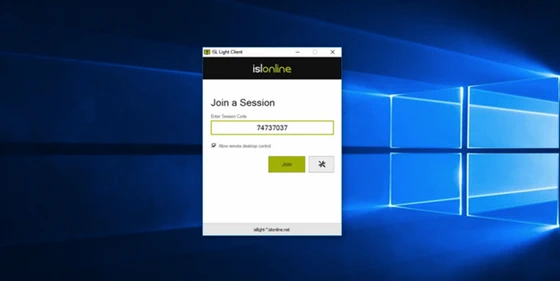
ISL Online is an outstanding option for those who want the most reliable and secure long-distance connections and are willing to pay its high fees. This tool uses the RDP protocol and allows remote access without needing a VPN or firewall change. With features such as Always-ON and Attended Access, this software allows for effective management and support of remote devices. Also, ISL Online provides users with a comprehensive and efficient experience with features such as file transfer, audio and video chat, multi-monitor support, and whiteboard tools.
ISL Online Pros
– 256-bit AES encryption and multi-factor authentication (MFA) to maintain security
– Compatible with all operating systems
– Access via browser without the need to install and download software
– Supports multiple monitors
– Secure and quick file transfer during meetings
– Meeting recording
– User and authentication management in corporate environments
ISL Online Cons
– Outdated user interface
– Expensive plans
– Problems connecting with proxies
– Problems with heavy graphics work
– Not suitable for remote desktop for gaming
Criteria for Choosing Remote Desktop Software
To make an informed choice among the available remote desktop solutions, you should take into account the following factors:
– Fast and smooth connections
– Support for various protocols such as RDP, VNC, or SSH
– Encryption of connections to secure data
– Support for multi-session capability for collaboration
– Simple and responsive user interface
– Secure file transfer between host and client devices
– Real-time remote support capability for troubleshooting
– Remote printing capability
– Recording of sessions for later review or future purposes
– Support for different operating systems
– Ability to customize settings
– Scalable to different needs
– Balance of features and price
Evaluating these criteria will help you choose the best remote desktop based on your goals and needs and continue on your path with strength. If you need some initial guidance to make a smarter choice, define your goal and identify the right tools.
Best Free Desktop Remote For Remote Connection
If you want to connect to a remote device and perform light tasks remotely, you can choose from free tools like Microsoft Remote Desktop and Chrome Remote Desktop. These tools are designed to establish a remote connection and cover all your basic needs.
Best Gaming Remote Desktop For Windows
If your goal in choosing the best remote desktop is professional gaming and you need a fast remote connection with minimal latency, TeamViewer and AnyDesk are good choices. These tools are compatible with various operating systems, including Windows, making their use convenient.
Best Gaming Remote Desktop For Mac
If you’re a Mac user, tools like Splashtop are great for online gaming and multiplayer games. Splashtop is known for its fast connections and high image quality, making it an excellent choice for games that require graphics performance and low latency. The tool supports multiple monitors, fast file transfers, and compressed graphics, which improves the gaming experience.
Best Gaming Remote Desktop For Linux
One of the most significant limitations is the poor support for advanced graphics and higher latency in some remote desktop software. However, tools like AnyDesk are good options for remote gaming on Linux. So, if you are a Linux user, you can use this tool for a lag-free and high-quality remote gaming experience.
Conclusion
Remote desktop software is designed to make accessing remote devices and systems easier. But they can best serve your purpose by making the connection secure and smooth. Tools like TeamViewer and Splashtop have proven reliable in this regard, but it’s essential to evaluate your specific needs before choosing the ideal tool. The type of protocol, level of security, and additional features are some criteria that can help you choose the right option.
Did this article help you? If so, please tell me in a comment what do you think about it.
Don’t miss any of our future video tutorials, follow us on Youtube. Like us on Facebook. Join our Best Deals Telegram Channel. Join our Android TV Box Firmware Updates Telegram Channel. Subscribe now to our newsletter. If you need Tech Reviewer or Youtube Influencer read this. Donate now here to support CGR Team!