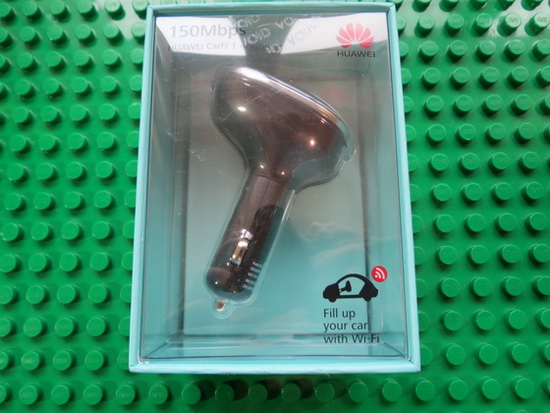
HUAWEI E8377S-153 CarFi 4G LTE Car Wifi Router Mobile Control.
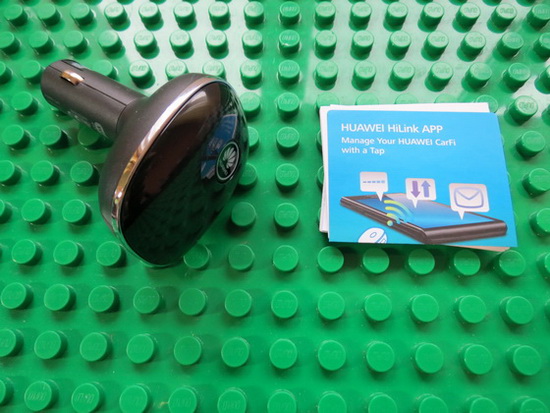
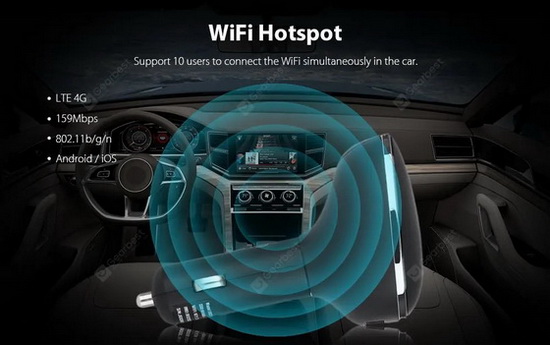
● Support LTE 4G and 10 users online, up to 150Mbps (insert the Micro SIM card)
● Stretchable buttons for better connection and not easy to cut off
● Compatible with a variety of electronic devices, like phones, tablets, GPS and so on
● 4G LTE Unlocked GSM (EURO BANDS ONLY) Carrier Desbloqueados GSM (NOT Verizon Sprint Net10 or Any CDMA Carrier)
● 4G Bands: FDD LTE 800/900/1800/2100/2600 MHz / 3G: 900/2100 MHz / 2G: 850/900/1800/1900 MHz
● Unlocked Router uses Micro Sim Card Hotspot Service is required. (No sim card or Services included).
● Up to 10 Users Wifi internal + optional external antenna, TS-9 connector
● Router Doesn’t Work in USA – Euro Bands and Some Latin American Countries.
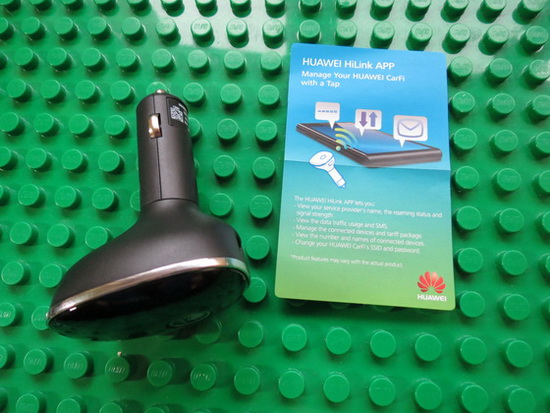
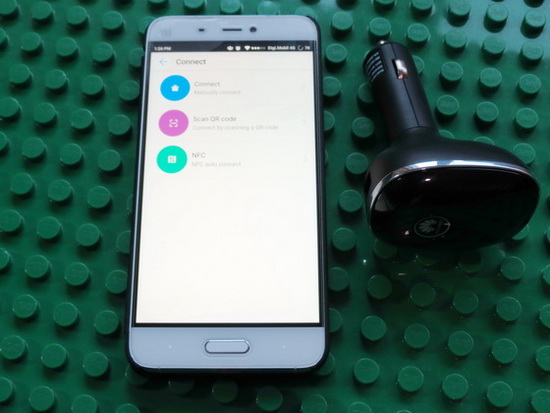
Huawei HiLink merges the functions of the Huawei Mobile WiFi and RuMate apps to provide you with a more consistent and simplified management experience. As a uniform management app, Huawei HiLink works with many Huawei products, such as Huawei Mobile WiFi (E5 series), Huawei routers, Honor Cube, and Huawei home gateways. It can be used to search for and manage all Huawei HiLink terminal devices. huawei HiLink is an app that lets you manage your HiLink devices from your phone or tablet.
Functions:
• View network status, including your carrier name, roaming status, and signal strength.
• Manage connected devices, disconnect any device at the touch of a button, and set Internet access priorities.
• Remind you when you have low battery, steep data usage, and new messages.
• Save and back up the files in your phone or tablet to the microSD card in your HiLink device.
• Share photos without generating mobile data traffic.
• Diagnose and optimize your HiLink device to its optimum state.
• Toggle between sleep and standard modes.
• Enable parental control and set limits on the duration of Internet usage for children.
• Set up a guest Wi-Fi network to improve the security of your home network.
• Provide diverse functionality, including the Internet connection wizard, SSID and password modification, APN modification, carrier selection, and device shutdown or restart.
Tips:
The functions that Huawei HiLink provides vary with the actual Huawei terminal device used.
Huawei HiLink APP can be used on the following devices:
Mobile WiFi (E5 series):
E5331, E5332, E5372, E5375, E5756
E5151, E5220, E5221, E5251, E589
E5730, E5776, E5377, E5786, E5573
EC5321, EC5377U, E5771s
HWD34,HWD35
Wingles
E8231, E8278, EC315, E355
CPEs
E5186, E5170, B310, B315s,HWS31
Home routers:
WS318, WSR20, WS331a, WS331b, WS330, WS880, WS326, WS328, Honor Cube(WS860), WS831
Download Huawei HiLink Android application v9.0.1.318 for free from Google Play Store.
iOS: search for HUAWEI HiLink in the App Store.
Step 2: Insert the HUAWEI CarFi into your car’s 12 V cigarette lighter socket.
Step 3: Press and hold the power button to power on your HUAWEI CarFi. It will automatically connect to the network provided by the SIM card.
Step 4: Search for the newly created Wi-Fi network on your device (such as your smartphone, tablet, and portable gaming console). Select the SSID of your HUAWEI CarFi and enter the Wi-Fi key.
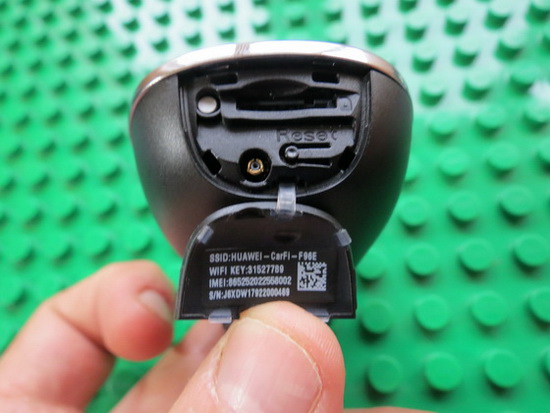
Note: The default SSID and the Wi-Fi password are printed on the HUAWEI CarFi
Network indicator
Blinking red: the HUAWEI CarFi is starting up.
Steady red: the HUAWEI CarFi failed to register with network or only a 2G network is
available.
Steady yellow: weak 3G/LTE signal strength or disabled external charging function.
Steady green: strong 3G/LTE signal strength.
Blinking cyan: the HUAWEI CarFi software is being updated.
Note
If no devices are connected to your HUAWEI CarFi within 30 minutes, it will disable its internet network. If no devices are connected for 2 hours, your HUAWEI CarFi will automatically shut down.
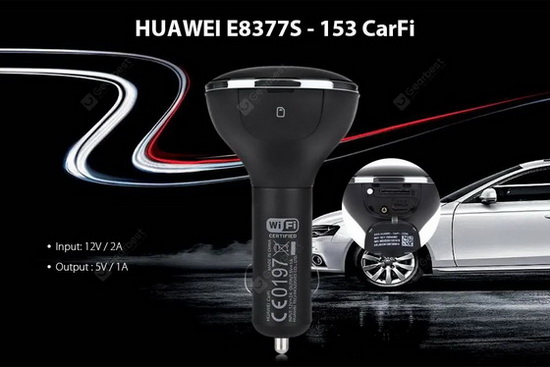
Model: E8377S-153 CarFi
Type: 4G LTE Car Wifi Router
Apply To Car Brand: Universal
Input: 12V / 2A
Output: 5V / 1A
Product weight: 68g
Product size (L x W x H): 6.00 x 4.80 x 9.40 cm / 2.36 x 1.89 x 3.7 inches
Color: Black
1 x HiLink App download card
Photo gallery full album here.

Did this article help you? If so, please tell me in a comment what do you think about it.
Don’t miss any of our future video tutorials, follow us on Youtube. Like us on Facebook. Add us in your circles on Google+. Watch our photo albums on Flickr. Subscribe now to our newsletter.