Best Deal Alet! Buy OBSBOT Tail Air AI-powered PTZ streaming camera from Obsbot.com for a very good price. Hurry up, limited time offer!
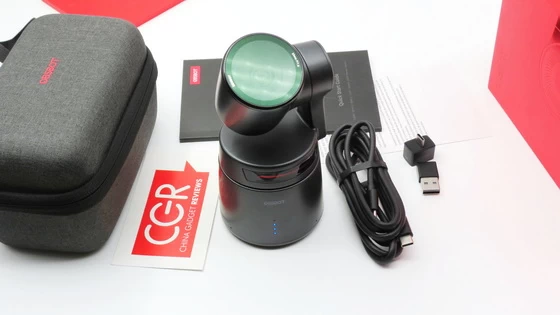
Meet OBSBOT Tail Air AI-powered PTZ streaming camera
OBSBOT Tail Air is designed for live streaming and recording from anywhere. With its incredible compatibility and support features, it seamlessly collaborates with a wide range of mainstream broadcasting devices, making it easier than ever for users to achieve multi-camera live streaming. Furthermore, OBSBOT Tail Air can bring you the next-level video streaming experience with 4K Resolution, AI Auto Tracking,NDI Support, Multiple Connection Methods, AI Director Grids and Exclusive Mobile Application, and other features that are worth it for power users. Whether it’s the content creation, live show, interview, house of worship, Multicam setup, and more. Helping more creators can easily create a professional, high-quality, multi-angle stream with Tail Air.
OBSBOT Tail Air features extraordinary Al capabilities, uses the AI Auto Tracking to follow the target you want, directs the video image with AI Director Grids, and delivers your commands in distance using upgraded Gesture Control 2.0. With its 2μm pixel size and ƒ1.8 aperture, OBSBOT Tail Air liberates your visuals from grainy and unclear quality in low light. Its powerful AI auto-tracking and low-light shooting capacities ensure you remain perfectly illuminated and in focus, no matter how challenging the lighting conditions are. Day or night, enjoy the freedom to effortlessly capture life’s beauty anytime, anywhere. The OBSBOT Tail Air is an AI-powered PTZ streaming camera that can be used in a variety of different scenarios. BTW, The OBSBOT Tail Air does support shooting from upside-down, the video image will automatically flip when you install the device from upside-down. With OBSBOT’s supported AI algorithm, your live streaming experience can be significantly elevated.
The ports on OBSBOT Tail Air are convenient, making the connection process faster and easier. You can run your livestream by connecting the devices with the USB-C, micro HDMI, or even the PoE-supported Ethernet cable, thus, the Tail Air can join your existed livestream solution effortlessly. Seamlessly switch perspectives, spotlight highlights, and create an immersive journey for your viewers – all at your fingertips with the AI Director Grids on OBSBOT Tail Air. With the ND Filters you get great coverage for various lighting conditions to reduce the amount of light that enter the OBSBOT Tail Air’s camera lens.
With a simple gesture, our auto human tracking function will lock onto an individual immediately, and keep the moving subject perfectly frame. Even when the target momentarily disappears from the frame, the camera will identify and re-engage them seamlessly. And it doesn’t stop there – OBSBOT Tail Air allows you to easily choose a specific part to track. Whether it’s a close-up of the chest, an upper half-body shot, or a full-body capture, your camera will accommodate your vision. No more complex settings. Your journey to exceptional visual artistry begins here. Equipped with multiple interfaces for connection, OBSBOT Tail Air offers the first-ever strong extendabilities of the OBSBOT family. OBSBOT Tail supports HDMI signal output via Micro HDMI port, you can use the matched cable and connect the Tail Air directly with the switchers/console, the video signal will be displayed properly and seamlessly.
The OBSBOT Tail Air captures more light with increased Pixel Size for exceptional low-light video quality. It also enhances bright light performance for stunningly detailed footage in any lighting condition. With the super clear optical craft and the lens collocation, the image of OBSBOT Tail Air could be extraordinary clear and astonishing. Without compromising video quality or incredible AI features, this device brings more possibilities to your live stream workflow!
OBSBOT Tail Air AI-powered PTZ streaming camera Main Features
– 4K Resolution. While the others continue to use 1080p HD resolution cameras for live streaming and recording, OBSBOT Tail Air has already supported 4K@30fps and 1080p@60fps, with the inner power of HDR and AI Enhancement. when you shoot with OBSBOT Tail Air, your video image could be dramatically vivid and true to life.
– AI Auto Tracking. The OBSBOT Tail Air employs a sophisticated Al algorithm to monitor individuals’ movements and identify them even after they have gone missing, offering an Al-enhanced live streaming experience with innovative video features. With the excellent AI Auto tracking function, OBSBOT Tail Air can easily achieve a variety of different tracking modes to help track humans, pets, and even objects at the speed of 120°/s speed. Under the Human Tracking mode (Single Person), Animal Tracking mode, and Object Tracking mode, OBSBOT Tail Air will lock onto tracking targets, helping you get rid of tricky angles and complex backgrounds for your shots.Trackable animals supported in the debut: cats, dogs, and horses, which will be added later as the algorithm is updated.
– NDI Support. NDI | HX3 has become the NDI format of choice for the vast majority of users in live events, live video production, conference production, remote production, and streaming applications. With support for NDI | HX3, the OBSBOT Tail Air can provide higher quality and low-latency live streaming video via Wi-Fi and Ethernet, It should be noted that the NDI connected by Ethernet needs to purchase a separate accessory. provides great convenience for remote end-to-end transmission.
– Multiple Connection Methods. To support the extensibility of Tail Air, we provide multiple connection options for the Tail Air device, allowing for both wired and wireless external connections. You can easily set up an OBSBOT live system by multi-cam connection. Of course, allowing it to integrate with other devices or brands’ ecosystems, and easily integrate into existing live streaming systems. Without compromising video quality or incredible AI features, this device brings more possibilities to your live stream workflow!
– AI Director Grids. This feature uses the OBSBOT AI algorithm to automatically divide captured video into different grids in real time. By clicking on a grid, you can quickly and accurately switch live scenes and direct broadcasts, which is very helpful for creating high-quality live content.
– Exclusive Mobile Application. We have developed an effortless and Limitless Obsbot Start App installed on your mobile phone. It lets creators connect and control up to OBSBOT Tail Air easily produce a high-end video quality show with multi-camera angles. The free app features AI Director Grids and Adjustable Parameters, you can customize image parameters before or during your live stream moments and apply them instantaneously. Creators can instantly live stream a cooking show, band performance, podcast interview, or event to YouTube, Facebook, Twitch, and more platforms with just a few taps on the intuitive Obsbot Start App.
– OBSBOT Smart Remote control. OBSBOT Tail Air Smart Remote Controller is here to help you to get rid of the limitations of the monitoring range when controlling your Tail Air device in independently and effectively.
– Iconic Low Light Shooting. The OBSBOT Tail Air’s increased true 2μm large pixel size and ƒ1.8 aperture allow for more light to be captured, resulting in exceptional low-light video quality with reduced noise and finer image performance.
– Gesture Control 2.0. Instead of pressing buttons or adjusting the camera over and over again, you can now simply put your hands up, and the camera will follow you wherever you go or cancel tracking mode. You can also zoom in/out both statically and dynamically with the simple “L” shape gesture, and start/stop recording with a simple “OK” gesture in distance.
– Multiple charging methods. The USB-C to C cable, PoE (provided that their network cable is charged) and an external 360-degree rotating base for charging.
– Multiple Control Methods. You can control the OBSBOT Tail Air with the exclusive APP Obsbot Start, extra Smart Remote Controller, Gesture Control 2.0 features, besides, as the device support tech and protocols like VISCA, OSC and NDI, more control possibilities are still on their way.
– 2μm Pixel Size. The OBSBOT Tail Air captures more light with increased Pixel Size for exceptional low-light video quality. It also enhances bright light performance for stunningly detailed footage in any lighting condition.
– Exclusive and Effortless Software Support. Enjoy an effortless and limitless livestreaming experience with OBSBOT Tail Air on Obsbot Start App. With simple operations, you can start your real-time livestream from anywhere and adjust image parameters as needed during the stream.
– One Click to Start Streaming. Obsbot Start offers internal support for popular livestream platforms. With just one click after your presetting, your livestream signal will be instantly on air.
– Best Accessories for Stunning Streaming Experience. Utilize the accessories of OBSBOT Tail Air for a variety of streaming scenarios and enhance your streaming experience.
OBSBOT Tail Air AI-powered PTZ streaming camera Highlights
4K Resolution
2μm Pixel Size
AI Auto Tracking
AI Director Grids
Gesture Control 2.0
NDI Support
Iconic Low Light Shooting
Multiple Connection Methods
Exclusive Mobile Application (iOS version is coming soon)
OBSBOT Tail Air AI-powered PTZ streaming camera Specifications
Brand: OBSBOT
Model: Tail Air
Model number: OSB-2108-CW
AI chip: Integrated AI chip, Trillions of calculations per second
Type: AI-powered PTZ streaming camera
Image sensor: 1/1.8” CMOS
Macro pixel size: 2.0μm*2.0μm
Effective pixels: 8.4 million
Effective pixel resolution: 3856×2176
Lens system: 8 Optical Lenses
Zoom range: 4X digital zoom
ISO range: 100-6400
Exposure Value: ±3EV
Electronic shutter speed: 1/8000 s to the limit of frames per second
Focus: Auto Focus/Manual Focus
Aperture: f/1.8
Equivalent Focal Length: 23mm
White Balance: 2000K-10000K
Gyroscope: 6-axis Gyroscope
Photo Resolution: 4K, 1080P
Video resolution: 4K@30/25/24 fps
1080@60/50/48/30/25/24 fps
Max video storage bit rate: H264 80Mbps, H265 80Mbps
Video format: MJPEG, H264, H265
Audio input: Built-in Two MEMS Microphones / Built-in 3.5mm TRS Connector (AUX) / Support MIC IN/LINE IN
Audio Modes: Noise Reduction/Stereo Sound
Audio Format: AAC/PCM
Gimbal installation: Non-removable
Controllable range: Pan: ±150°; Tilt: -65°~32°
Mechanical range: Pan: ±160°; Tilt: ±90°
Max controllable speed: 120°/s
Angle Jitter: ±0.05°
Wi-Fi Operating frequency: 2.4 GHz / 5.8 GHz
Signal transmission range: 2.4G 80m, 5.8G 140m
2.4 GHz Transmission power:<16 dBm(FCC/CE/SRRC/MIC)
5.8 GHz Transmission power:<14 dBm(FCC/CE/SRRC)
Bluetooth Protocol: BLE 5.1
Bluetooth Operation Frequency Range: 2.400 GHz to 2.4835 GHz
Input: 5V/2A
Quick charge protocol: Don’t Support
Charging time: 90 Minutes (Power off status)
Operating time: 154 minutes (Tested in a laboratory environment while recording 1080p/30fps video and should be used for reference only)
Battery type: Lithium Polymer (Li-po)
Battery capacity: 1500mAh
Battery energy: 11.4Wh
Battery voltage: 7.6V
Auxiliary functions: Gesture Control
Auxiliary App: Obsbot Start (Single camera)
Memory card type: Micro SD (Up to 512 GB)
Camera working environment temperature: -10°C-40°C
Battery charging ambient temperature: -10°C-40°C
Battery operating ambient temperature: -10°C-40°C
Size (Working state): 69.65mm x 73.25mm x 132.5mm
Size (Off state): 69.65mm x 73.25mm x 135.5mm
Weight: 344.5g
Color: Black
FCC ID: 2ASMC-OSB2108
IC: 29906-OSB2108CW
Product code: CAN ICES-003(B) / NMB-003(B) / 6971889230304
Firmware vresion: 5.0.41
Accessories
Utilize the accessories of OBSBOT Tail Air for a variety of streaming scenarios and enhance your streaming experience.
– Smart Remote Controller. As the perfect match for OBSBOT Tail Air, the Smart Remote Controller extends control capabilities for up to three Tail Air devices via Bluetooth connection, eliminating mobile phone limitations while keeping the key features usable.
– USB-C to Ethernet Adapter. Designed specifically for OBSBOT Tail Air’s Ethernet connectivity, the adapter provides stable and smooth signal transmission for your wired NDI solution.
– ND Filters. Great coverage for various lighting conditions to reduce the amount of light that enters the OBSBOT Tail Air’s camera lens.
– 360-degree rotating base for charging. Extend the endurance of your OBSBOT Tail Air device to over 7 hours and can achieve true 360° rotation to capture amazing shots.
– Micro HDMI to HDMI Cable.
Button operations
– Power on: Long press 3s to power on
– Sleep: In the power-on state, long press 3s to sleep
– Shutdown: In the power-on state, press and hold 10s to shut down
– Power display: single press to check the power in the off state.
Camera Interfaces
– Type-C: Mainly used for charging or connecting to a computer to transfer files.
– HDMI micro: Mainly used to connect to a monitor to display the current camera screen.
– Aux: aux audio interface, AUX 3.5mm audio interface can be used for headphones, microphones, computers and other devices with audio interface.
– SD card slot: microSD card insertion.
– Dual microphones: used to capture external audio.
How to Use OBSBOT Tail Air Smart Remote Controller
Step 1: Charge the Remote Controller
– Before using the remote controller, make sure it is fully charged. Connect the included USB-C cable to the remote controller and a power source. The LED indicator on the remote controller will turn blue when charging and turn off when fully charged.
– After charging, move down the lock button to unlock and activate your controller.
Step 2: Connect the Remote Controller to Your Device
– To connect the remote controller to your Tail Air device, turn on your Tail Air, press three times the power button of the device, and the indicator light will start flashing.
– In the meanwhile, press the 【Human Tracking】button and the 【Select Camera】button at the same time, and the LED indicator on the controller will flash either.
Note: 【Select Camera】have 3 buttons, which means that up to 3 cameras can be matched, if you want to connect another device, press another number of【Select Camera】button to set it as your second or third device.
– Once the connection is finished, the corresponding【Select Camera】will light up and be white color.
– Click the 【Select Camera】button and the clicked one will turn green, which means you’re controlling the following Tail Air device.
Step 3: Use the Remote Controller
Once the remote controller is charged, and connected, you’re ready to start using it! Use the smart remote controller to control the movement of the OBSBOT Tail Air and explore more possibilities with it.
OBSBOT Start App Firmware Update
Note: Before updating, ensure that your device’s battery level is above 10% if charging, or above 35% without charging. The APP will give you an upgrade notice when you are due an upgrade. Then follow the APP instructions to upgrade.
Step 1: When new firmware is available for Tail Air, a notification will appear when you access the camera via the OBSBOT Start App.
Step 2: Click on “View” to go to the download page.
Step 3: Click on “Download Firmware” and the App will begin downloading the firmware file.
Note: If you are using a cellular data connection, a notification will appear to confirm whether you want to use cellular data for downloading the firmware file. While the file is downloading, you can exit the page, and the download will continue in the background.
Step 4: After the download is complete, the App will automatically start the firmware update. If you have exited the download page, a prompt will appear reminding you to start upgrading when the download is finished. During the update, the indicator light of OBSBOT Tail Air will flash blue and yellow alternately.
Note: Please do not close the OBSBOT Start App or turn off the device during the update process. The update process will take 3-4 minutes, and when it is finished, Tail Air will restart. The indicator light will turn green (by default), indicating that the update is successful. You can also check for the latest firmware update in “More Settings” > “About Device” > “Firmware” > “Update”.
Using a SD Card to Upgrade
You can download the latest upgrade package on OBSBOT’s offcial website. Unzip the upgrade package and copy the .bin file to the SD card root directory. Insert the SD card into your Tail Air. Once Tail Air reads the SD card, it will restart and upgrade.
Note: Before upgrading, please make sure the SD card has more than 1GB of usable capacity, and the camera battery needs to be more than 25%. After completing the upgrade, you can check the result through the .txt file in the SD card root directory.
During the upgrade, the yellow and blue lights will flash alternately. After a successful upgrade, the status indicator light changes to normal operating mode. You can connect to the APP to check the upgrade results. If the upgrade fails, the light will turn red, and the camera will emit a beeping sound.
How to Use NDI with OBSBOT Tail Air
NDI (Network Device Interface) is a technology developed by NewTek that allows video sources to be shared over an Ethernet local area network. It enables different video production software and hardware to communicate with each other and transfer high-quality, low-latency video between systems. The OBSBOT Tail Air supports the wired and wireless NDI solution. For wired NDI connection, you might need to purchase an extra accessories from us called: USB-C to Ethernet Adapter.
Steps to Use NDI with OBSBOT Tail Air
Step 1: Activate NDI on OBSBOT Tail Air. Make sure you’ve got an exclusive NDI code from OBSBOT official store. Connect your Tail Air device with your mobile via OBSBOT Start App. Find the NDI setting in “More settings” of OBSBOT Start App. Click “Activate” and enter your NDI key, the NDI status will transform into “Activated”. Turn on the “NDI mode” button, now you can continue the process on your NDI Tool App.
Note: The HDMI signal wouldn’t be outputted when you’re using the NDI connection on Tail Air.
Step 2: Downloading and Installing NDI Tools. To start using NDI, you’ll need to download the NDI Tools pack from NewTek’s website. Go to https://ndi.video/tools/ndi-core-suite/. Click on “Download NDI Tools”. Install the NDI Tools on your computer. This will include NDI Scan Converter, NDI Studio Monitor, and other utilities.
Step 3: Connecting NDI Sources. Once you have NDI Tools installed, connecting NDI sources is straightforward. Ensure the Tail Air device you want to connect is on the same local network. Use the NDI Scan Converter utility to turn Tail Air’s signal into an NDI stream. Launch NDI Studio Monitor app and select your video input. You should now see the NDI source video feed in your receiving app or device! Select the matched device and you can now see the real-time video signal from Tail Air.
Obsbot Start Android application
Enjoy an effortless and limitless livestreaming experience with OBSBOT Tail Air on Obsbot Start App. With simple operations, you can start your real-time livestream from anywhere and adjust image parameters as needed during the stream. With Obsbot Start App, you can customize image parameters before or during your livestream moments and apply them instantaneously. OBSBOT Start only supports connecting to a single device. It can search for nearby devices through LAN and Bluetooth. After Bluetooth discovers the device, the user can configure the network for the device through STA/AP. After the device is successfully connected, you can enter the shooting screen, and you can switch the output screen by clicking the screen. Exclusively designed for OBSBOT Tail Air, Obsbot Start is compatible with mobile and tablet devices. With its easy-to-use interface and powerful features, your Tail Air livestreaming experience can be significantly improved with minimal effort.
LAN: Corresponding to the APP “LAN” connection, it is divided into two parts: wired and wireless. The wired connection cannot switch the connection. That is, if you find that the device and APP are in the same LAN, you can enter the shooting page.
STA: Corresponding to the APP “Wi-Fi” connection, that is, connect the device and APP to the same LAN.
AP: Corresponding to the APP “cellular data” connection, that is, connect the APP to the hotspot of the device, and streaming through the cellular data of the mobile phone.
1. Scan the QR code or search for the ‘Obsbot Start’ APP in the APP store or download the Obsbot Start App latest version 1.0.36.21 (build 21) from here.
2. Power on your Tail Air.
3. Turn on Bluetooth and Wi-Fi on your phone.
4. Open the App and tap on your camera (the default nameis “Tail Air_XXXXXX”), then follow the APP instructions to connect yourTail Air.
OBSBOT LIVE Stream Platform
If you wanna to complete your Stream Platform setup. Just click this link to open OBSBOT dashboard to add account of the platform you want to go live on.
What’s In The Box
1 x OBSBOT Tail Air AI-powered PTZ streaming camera
1 x Storage Case
1 x USB Type-C Cable
1 x USB Type-C to USB-A Adapter
1 x USB Type-C Male to Dual USB Type-C Female Splitter
1 x Warranty Card
1 x Quick Start Guide
Photo gallery full album here. Official page . Read more about OBSBOT products here.
About OBSBOT. Founded in April 2016, OBSBOT, an artificial intelligence camera brand, is dedicated to connecting people and the imaging industry to the future. With the artificial intelligence as the core, OBSBOT focuses on the application research of new technologies in the field of videography. It hopes to use revolutionary technology and innovative products to innovate the way of public records and image creation, and to change people’s social way.
Did this article help you? If so, please tell me in a comment what do you think about it.
Don’t miss any of our future video tutorials, follow us on Youtube. Like us on Facebook. Join our Best Deals Telegram Channel. Join our Android TV Box Firmware Updates Telegram Channel. Subscribe now to our newsletter.